
NEWS
Samsung’s Notification LED Isn’t Gone. It’s Just Hidden in Settings
Samsung killed its notification LED on the Galaxy S10 in 2019. Edge lighting has been in Galaxy Settings since the S8, off by default for most Galaxy owners.

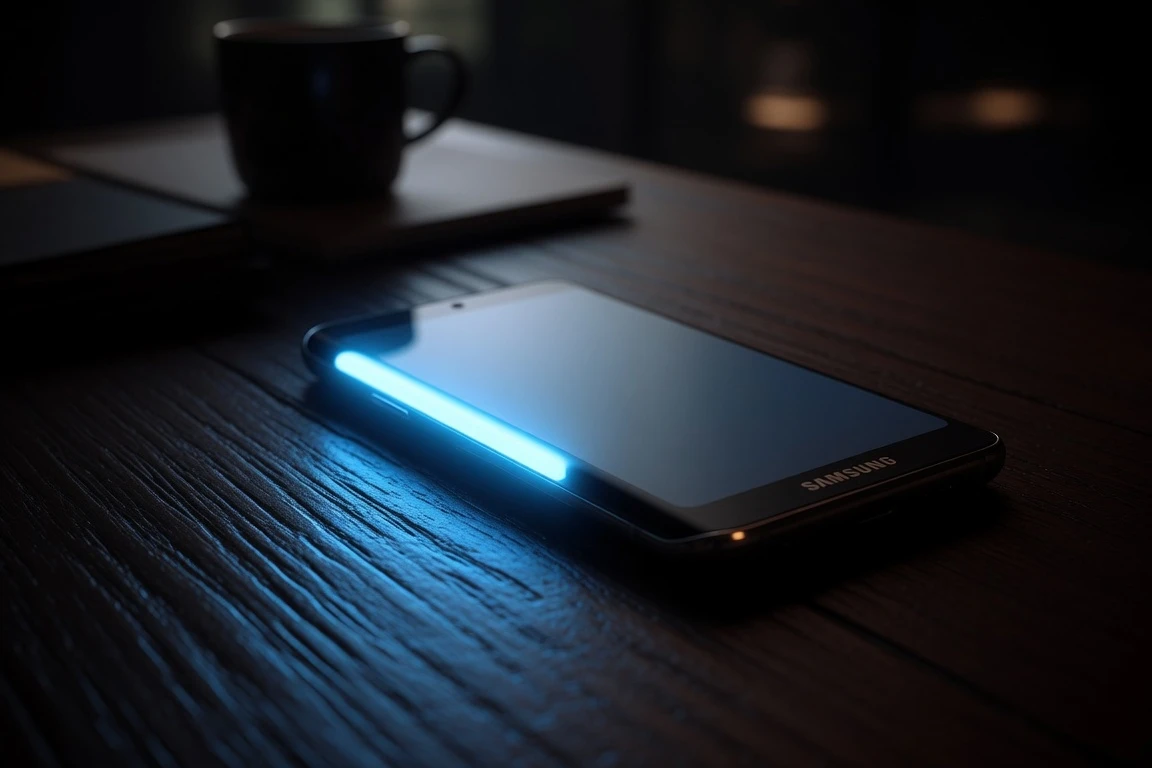
Samsung killed the notification LED on the Galaxy S10 in 2019. Its replacement has been hiding inside Galaxy Settings ever since, and most owners have never turned it on. The feature is called Edge lighting, and it turns the curved edge of the display into a customizable notification signal.
It is a software echo of the small LED that once blinked blue, red, and green from the top-left corner of older Galaxy phones. The trade-off: Edge lighting is louder and brighter than the LED it replaced.
The Notification LED Samsung Quietly Killed
The old LED sat at the top-left of the front face of every Galaxy and used color and motion to signal state. Blue (blinking) meant an unread notification, a missed call, a message, or active voice recording. Red (glowing) meant the phone was connected to a charger and charging, while red (blinking) signaled the battery was low. Green (glowing or blinking) meant the phone was fully charged.
Third-party apps could push their own colors too, so white, purple, and pink were common on the top corner of a face-down phone. The dot was discreet enough that you could leave a Galaxy on a desk and still know whether to flip it over without unlocking the screen.
Samsung killed the notification LED when it launched the Galaxy S10 in 2019 to make room for the new bezel-less Infinity Display. The Galaxy S9 line was the last generation to ship with one, and the LED has not returned since.
The Replacement Already Living Inside Your Phone
Edge lighting debuted on the Galaxy S8 in 2017, when Samsung was still betting on curved edge displays. Samsung’s own UK support page describes it as a way to use the entire edge of your display as a notification light. Samsung UK’s Edge lighting overview and setup walks through the same controls on more recent phones.
When a notification arrives, the curved edge of the screen glows in the color and effect you choose. You can swipe it down to open the app in a pop-up window, tap it to launch the app, or swipe it sideways to dismiss it. The full edge, not a single dot, becomes the signal. The phone must already be on for the default behavior, though a toggle lets the glow fire while the display is asleep.
The Galaxy S10 added a second signal, a ring of light around the Infinity-O camera cutout that lights up when face recognition or the selfie camera is active. It is more about privacy than notifications, but it is the closest thing the S10 has to the old LED dot.
Edge lighting is the feature most owners never find. It is buried inside Settings, off by default, and Samsung does not surface it during setup. That gap is why a flagship feature can sit dormant in a phone for years.
How to Turn On Edge Lighting
There are two paths through Settings, depending on your One UI version; newer Galaxy phones route through Notifications, while older edge-curved models route through Display. Galaxy S25’s June AI update with Notification highlights shows how Samsung is still iterating on notification signals on its current flagships.
On a Galaxy S10 or newer, open Settings, tap Notifications, then tap Notification pop-up style. This is the central control panel for brief pop-ups and Edge lighting on modern Galaxy phones. The Brief option at the top of that screen is what routes alerts through Edge lighting.
On a Galaxy S8, S9, or Note 8, open Settings, tap Display, then tap Edge screen, then tap Edge lighting. The menu has the same effect and color options as the modern path.
Either way, tap the panel at the top of the Edge lighting screen to switch the feature on. Then tap Show Edge lighting and choose While screen is on, While screen is off, or Always. Toggle Show even while screen is off on the newer path if you want the edge to glow when the display is dark, and Samsung’s Edge lighting and LED notifications guide documents every step.
Edge lighting is supported on any Galaxy running Samsung Experience 9.0, One UI, or later. The full setup runs through six steps inside the Edge lighting style menu.
- Open the Edge lighting settings.
- Tap “Edge lighting style.”
- Tap “Effect” and pick your preferred style.
- Tap “Color” and pick your preferred color.
- Adjust Transparency, Width, and Duration to taste.
- Tap “Done” to save.
Customizing Effects, Colors, and Timing
The Effects tab is where Edge lighting stops feeling like a poor cousin of the old LED. Samsung ships five built-in animations on the phone itself, and an add-on in the Galaxy Store extends the catalog with five more. Each plays the glow around the screen edge with its own motion pattern. Some pulse, some sparkle, and some draw a looping ribbon of light.
The Colors tab lets you pick a single color for every notification or assign colors by keyword, so a specific word in a message can trigger a specific hue. Auto mode lets the system pick the color for you, while custom mode locks you into one palette across every alert. The keyword list lives in the same panel where you set up brief pop-ups, and each entry persists across reboots.
The Advanced tab exposes three sliders: Transparency, Width, and Duration. Transparency controls how solid the glow looks against the screen, Width controls how thick the band of light is, and Duration controls how long each pulse runs.
The EdgeLighting+ add-on in the Galaxy Store adds these five extras:
- Boomerang
- Celebrate
- Galaxy
- Loop
- Black hole
Controlling Which Apps Trigger Edge Lighting
Edge lighting is not all-or-nothing. Inside the Edge lighting settings, Samsung ships a Manage notifications panel that lets you pick which apps are allowed to light the edge. By default, all available apps are enabled.
On the modern path (Notifications > Notification pop-up style > Brief), there is a separate Apps to show as brief toggle list. Switch off any app you do not want flashing the screen edge. The system routes every other app through Edge lighting as configured. The toggle works per-app, so you can keep messaging apps loud and silence system alerts without writing any rules yourself.
Color by keyword lives in the same panel and adds a second layer of control on top of per-app toggles. You define keywords (a sender’s name, a bank, an app code) and assign a color, so a message containing that word lights the edge in your chosen hue while everything else uses the default. You can stack several keywords on the same color or split them across the palette, with no limit on how many entries you can add.
The third toggle, Show even while screen is off, is the one most relevant to former LED users. With it on, Edge lighting will wake the edge of the display to signal a notification even when the phone is asleep. Without it, the screen must already be on for the glow to appear. One UI 9.0’s runtime phishing block on Galaxy is the next control in Samsung’s wider push to make Galaxy notifications smarter in 2026.
Edge Lighting vs. the LED It Replaced
The LED was a single dot at a fixed location that signaled state without ever waking the rest of the phone. Edge lighting is a full screen-edge animation driven by the display itself. BGR’s rundown of features Samsung has removed from Galaxy phones noted that Edge lighting turns the entire edge around your Samsung’s screen into a notification light, but it is not as subtle as the LED.
Edge lighting wins on customization: more colors, more effects, more places to put the glow, and the ability to scope the signal to specific apps or keywords. The old LED could only blink a single color regardless of which app was pinging you. The LED won on restraint and battery: a small dedicated indicator that did not wake the panel used less power than an AMOLED edge animation. On a Galaxy S25 or S26, the LED is gone for good, and Edge lighting is the only signal the phone offers. Phones built around the bezel-less display do not have room for both, which is why the choice Samsung made in 2019 is the one every modern Galaxy owner inherits today.
| Attribute | Notification LED | Edge Lighting |
|---|---|---|
| Location | Top-left corner of front face | Curved edge of display |
| Color set | Blue, red, green (third-party: white, purple, pink) | Customizable; auto or per-keyword |
| Effects | Solid, blink, pulse | Basic, Glitter, Echo, Bubble, Heart, plus EdgeLighting+ add-ons |
| Active when | Phone is in standby, screen off | Configurable: on, off, or always |
| Power draw | Dedicated indicator LED | AMOLED edge animation |
| Models | Pre-S10 Galaxy phones (S9 was the last to ship with one) | Galaxy S8 and newer (debuted on S8) |
Frequently Asked Questions
What is Edge lighting on Samsung phones?
Edge lighting is a Samsung feature that lights the curved edge of a Galaxy’s display when a notification arrives. Samsung introduced it on the Galaxy S8 in 2017 alongside its edge-curved displays.
Why doesn’t my Samsung phone have a notification LED?
Samsung dropped the dedicated notification LED starting with the Galaxy S10 in 2019. The bezel-less Infinity Display needed the space the LED once occupied, and Samsung replaced the function with Edge lighting.
Can Edge lighting work when the screen is off?
Yes. Toggle “Show even while screen is off” under Notification pop-up style, or set “Show Edge lighting” to “While screen is off” or “Always.” The edge of the display will glow briefly to signal a notification.
How do I limit Edge lighting to specific apps?
Open Edge lighting settings, tap “Manage notifications,” and select which apps you want to trigger the effect. On modern Galaxy phones, you can also flip individual apps on or off using the “Apps to show as brief” toggle inside Notification pop-up style.
Does Edge lighting drain more battery than the old LED?
Edge lighting uses the AMOLED display panel rather than a dedicated indicator LED, so each glow draws more power than the old dot. The effect runs only at the edges and only during the brief glow itself.
Which Galaxy phones support Edge lighting?
Edge lighting is supported on Galaxy devices running Samsung Experience 9.0 or One UI, which covers the Galaxy S8 and every newer flagship. The feature is built in and does not require a download.


OpenAI Ultrafast Puts GPT-5.6 Sol on Live Workloads

Apple’s 15% External Fee Bid Admits Its Own Zero Floor

JBL Beats Bose and Sony on Value for 2026 Soundbars

iPhone Users Pull 40 Percent More From Microdrama Apps

Nebius Q2 Turns AI Cloud Demand Into Prepaid Growth Machine

One UI 9.5 App Lock Ends Years of Samsung Delays

Shiprocket IPO Premium Hides ESOP Costs and Flat Merchant Base

Google Halves Gemini 3.7 Flash Price to Fuel Agent Swarms

Dawnwalker Time Clock Cracks Open-World RPG Habits

Gemini 3.7 Flash Cuts Agent Costs While Pro Stays Delayed

Fable 5 and Mythos 5 Return as US Lifts Anthropic Export Controls

Oracle Cuts 21,000 Jobs in a Year, Cites AI in 10-K Filing

SpaceX’s Google Deal Turns a Rocket Company Into a Cloud Landlord

CD Projekt Red Co-CEO: Redemption Arc Isn’t Done, Witcher 4 in 2027

XPL Rallies 30% Ahead of Plasma One Card Tier Launch

Google Search Profiles Build a Follow Graph Inside Discover

DGO App Brings Rs 549 Mobile Pass for FIFA World Cup 2026 in Nepal

Moonshot AI Targets $30 Billion in China’s Fastest AI Funding Sprint

Microsoft Xbox Layoffs Start in July as Sharma Slams 3% Margin

Oppo’s ColorOS 17 Eligibility List Leaves A-Series Buyers Behind
-
 AI2 months ago
Fable 5 and Mythos 5 Return as US Lifts Anthropic Export Controls
-
 AI2 months ago
Oracle Cuts 21,000 Jobs in a Year, Cites AI in 10-K Filing
-
 AI2 months ago
SpaceX’s Google Deal Turns a Rocket Company Into a Cloud Landlord
-
 GAMING2 months ago
CD Projekt Red Co-CEO: Redemption Arc Isn’t Done, Witcher 4 in 2027
-
 CRYPTO2 months ago
XPL Rallies 30% Ahead of Plasma One Card Tier Launch
-
 NEWS2 months ago
Google Search Profiles Build a Follow Graph Inside Discover
-
 APPS2 months ago
DGO App Brings Rs 549 Mobile Pass for FIFA World Cup 2026 in Nepal
-
 AI2 months ago
Moonshot AI Targets $30 Billion in China’s Fastest AI Funding Sprint