
COMPUTERS
Intel Graphics Driver Fixes Still Fight Windows and OEMs
DSA, OEM apps, and clean installs fix Intel graphics flicker, but Windows Update and custom laptop drivers keep undoing the work. Here is the lasting path.

An outdated or broken Intel graphics driver still produces flicker, blank screens, failed installs, and update loops on Windows PCs in August 2026. The supported paths from Intel, Microsoft, Dell, Lenovo, and HP clear most of those symptoms. Yet every clean install sits inside a larger conflict: Windows Update often reverts a fresh package, OEM-customized laptop drivers refuse generic ones, and users end up repeating the same recovery steps months later.
Start with the right source for your machine, then escalate only when the simple tools leave the problem intact.
OEM Paths Come First on Branded Laptops
Intel itself tells laptop owners to check the computer manufacturer before grabbing a generic package. Customized drivers carry platform-specific tweaks that the generic Intel installer can overwrite or reject.
- On a Dell system open SupportAssist, go to Home, choose Update software, select Start, open View updates, then install and restart.
- On a Lenovo PC open Lenovo Vantage, go to System Update, select Check for Updates, and install the graphics package or all available updates.
- On an HP machine open HP Support Assistant, go to My Dashboard, choose your computer, open Updates, wait for the analysis, then download and install the listed items.
- For other brands visit the maker’s support site with the exact model, service tag, or serial number and run the model-specific Intel graphics installer.
When the Intel installer reports that a customized driver is already present, stay on the OEM path. That single check prevents most “this package is not compatible” failures on notebooks.
Intel DSA Handles Supported Consumer Systems
For desktops or systems without a useful OEM app, the Intel Driver and Support Assistant download remains the first consumer tool. Download the installer from Intel, run Intel Driver & Support Assistant Installer.exe, accept the license, install, and launch. The browser dashboard scans the PC. Open Available Updates, choose Download all and Install all, or pick only the graphics driver. Restart when asked.
If the scan fails in Chrome or Edge, open the site information icon, allow Local Network Access, then add intel.com under the browser’s Local Network Access permissions and refresh. Keep Automatic Downloads enabled afterward so future packages appear without a full rescan.
DSA only offers Intel-supported updates for hardware it recognizes. Unsupported or heavily customized machines still need the manual Download Center route.
Manual Packages Match the Exact Hardware
When DSA skips the driver you need, open the Intel Download Center search, choose Graphics, or search by the processor number. Press the Windows key, type System, open System information, and note the processor. Enter that number, filter to Drivers and Software, download the matching.exe, and run it.
Two current packages cover most recent hardware. The table below lists the versions available as of mid-2026.
| Package | Latest version | Date | Covers |
|---|---|---|---|
| Arc Graphics Windows | 32.0.101.8864 | 20 July 2026 | Arc B-Series, A-Series, Core Ultra with Arc Graphics |
| 11th-14th Gen Processor Graphics | 32.0.101.7088 | 22 June 2026 | 11th through 14th Gen Core processor graphics, Iris Xe Dedicated |
The current Arc and Core Ultra package is an 877 MB WHQL build that supports Windows 11 family releases through 25H2 and Windows 10 22H2. After install, open Device Manager, expand Display Adapters, open the Intel device, check the Driver tab, and confirm the version matches.
Intel notes that generic packages overwrite OEM customizations. Corporate or heavily tuned laptops should stay with the maker’s driver unless the OEM path has already failed.
Clean Install Clears Stubborn Conflicts
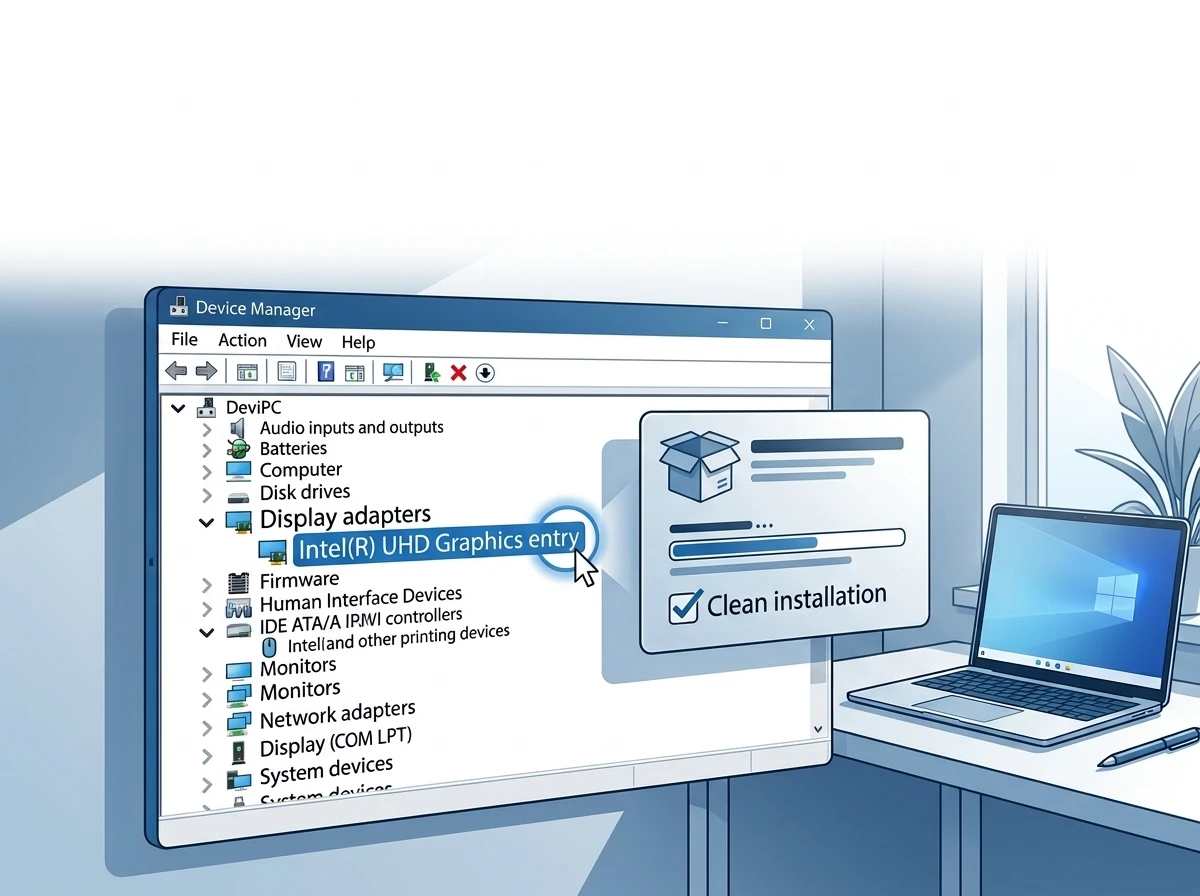
Failed installs, leftover settings, and driver store fragments often survive a normal upgrade. Intel’s official clean installation steps remove the old package and restore defaults.
Download the correct driver first. Run the.exe, accept the license, tick the checkbox to execute a clean installation when it appears, click Start, and reboot when prompted.
If the checkbox never appears or the problem remains, remove the driver manually. Disconnect from the internet so Windows cannot reinject a package. Right-click Start, open Device Manager, expand Display Adapters, right-click the Intel entry, choose Uninstall device, check Delete the driver software for this device, and confirm. Restart. Device Manager should now show Microsoft Basic Display Adapter or Standard VGA Graphics Adapter. If the Intel entry returns, repeat the uninstall and reboot. Only then install the fresh Intel or OEM package and restart again.
When even that fails, Intel documents Display Driver Uninstaller. Download DDU, boot into Safe Mode, run it, select GPU and the Intel device (or all GPUs), choose Clean and restart, then install the current driver once Windows returns to normal mode. The Intel-documented DDU process is the supported last-resort cleanup path.
Recovery Paths After a Bad Update
A new driver can freeze the display or introduce new glitches. Match the symptom to the fastest recovery.
- Frozen or blank screen: press Windows + Ctrl + Shift + B and listen for the beep or watch for a flicker that resets the graphics stack.
- Roll Back Driver available: Windows + X, Device Manager, Display Adapters, double-click the Intel device, Driver tab, Roll Back Driver.
- Roll Back grayed out: download a previous package from Intel Download Center or the PC maker and install it.
- Windows rebuilt the driver badly: uninstall the device in Device Manager without deleting the software, then restart so Windows can recreate a basic instance.
- Windows Update swapped a newer Intel driver for an older one: install the latest package over the top and leave the clean-install checkbox unchecked.
Crowd reports on X in early August 2026 still show Arc users rolling 32.0.101.8864 back after refresh-rate drops or game crashes following BIOS or Windows 25H2 updates. The pattern matches Intel’s own guidance: the newest package is not always the stable one on every system.
What we know
- Windows Update can and does replace a newer Intel driver with an older OEM-validated one.
- Installing over the Windows version without a full uninstall is the first recommended fix.
- Microsoft’s Show or hide updates tool can block a specific driver package from returning.
What remains case-by-case
- Whether a given laptop’s OEM profile will accept the latest generic Arc package.
- How long a blocked update stays hidden after major Windows feature updates.
For optional driver handling more broadly, the same Windows Update advanced options that surface other Microsoft products also control whether driver packages appear; related toggle behavior is covered in our note on Windows optional driver update handling.
Control Apps Have Shifted Again
Older guides still mention Intel Arc Control, Graphics Command Center, or the classic Graphics Control Panel. Arc Control is end of life. Graphics Command Center receives only critical legacy fixes. The old Control Panel is discontinued for newer systems.
Intel Graphics Software is the current app for systems with Intel Xe Plus Graphics v11 or Arc dedicated graphics on Windows 11 22H2 or Windows 10 22H2 running driver 32.0.101.6325 WHQL or later. It installs with the supported driver package on 12th Gen Core and Arc hardware. On everything else, stay with DSA, Download Center, or the OEM support site.
Managed work or school PCs often block driver changes through Windows Update policy. Contact the IT administrator before forcing a new package.
Fallbacks Keep the System Usable
Windows Update and Device Manager remain useful when the Intel or OEM path is blocked. On Windows 11 open Settings, Windows Update, Advanced options, turn on Receive updates for other Microsoft products, open Optional updates, select any listed driver packages, and install. On Windows 10 the path is Settings, Update & Security, Windows Update, Advanced options, then the same optional updates link.
In Device Manager right-click the Intel adapter, choose Update driver, and select Search automatically. If nothing appears, choose Search for updated drivers on Windows Update. When you already have a downloaded folder, pick Browse my computer for drivers and point to it.
These routes rarely deliver the absolute newest Intel package, yet they restore a working display when every other method is stuck. The second-order cost is clear: once the display works again, the same Windows-OEM-Intel tension can reappear after the next feature update, so bookmark the clean-install and hide-update steps rather than treating the problem as permanently solved.
Frequently Asked Questions
Is Intel Driver & Support Assistant better than Device Manager?
For supported Intel hardware, yes. DSA pulls Intel-validated packages directly from Intel’s catalog, while Device Manager only surfaces drivers that Microsoft has staged for that exact PC configuration through Windows Update.
Should I use the Intel driver or my laptop maker’s driver?
Begin with the laptop maker’s driver on Dell, HP, Lenovo, and other OEM systems, especially when the machine ships with customized graphics firmware. Switch to Intel Download Center only after the OEM path fails or you need a feature that the maker has not yet packaged.
What should I do if the latest Intel graphics driver makes things worse?
Use Roll Back Driver in Device Manager while the previous package is still cached. If the button is unavailable, download an earlier WHQL build from Intel or the PC maker and install it without the clean-install option so the working state returns quickly.
Is Display Driver Uninstaller safe to use for Intel graphics problems?
Intel documents DDU as a supported option when normal clean install or Device Manager uninstall leaves fragments behind. Run it only in Safe Mode, select the GPU target carefully, then install the current Intel or OEM driver immediately after the reboot.
How do I stop Windows Update from replacing a newer Intel driver?
Install the newer package over the Windows version without uninstalling first, then use Microsoft’s Show or hide updates troubleshooter to block the specific older driver package from reappearing. Group Policy or registry controls on Pro editions can disable automatic driver downloads entirely if the machine is not managed by IT.


South Korea Retail Investors Face Reckoning After KOSPI AI Rally Collapses

Surrey AI Maps Three Heart Attack Paths and Their Molecular Roots

Germany Locks Neutral Apple ATT Prompts Across Most of Europe

Apple’s 5% EU Fee Quietly Rewrites Alternative App Store Math

Apple’s EU Fee Truce Cuts Complexity but Leaves Rivals Fuming

Pixel 11 Pro Fold Trades Thinness for Durability and Seven-Year Stay

Mayo AI Flags HCM Obstruction From Everyday Ultrasound Videos

Indian Brands Quietly Scale Landmark Screens and Home Tech

Navin Vatsa Turns Grief Into a Lifetime of Quiet Seeing

Google Bets Pixel 11 Agentic AI Will Redefine Phones

Oracle Cuts 21,000 Jobs in a Year, Cites AI in 10-K Filing

Fable 5 and Mythos 5 Return as US Lifts Anthropic Export Controls

SpaceX’s Google Deal Turns a Rocket Company Into a Cloud Landlord

CD Projekt Red Co-CEO: Redemption Arc Isn’t Done, Witcher 4 in 2027

XPL Rallies 30% Ahead of Plasma One Card Tier Launch

Google Search Profiles Build a Follow Graph Inside Discover

DGO App Brings Rs 549 Mobile Pass for FIFA World Cup 2026 in Nepal

Moonshot AI Targets $30 Billion in China’s Fastest AI Funding Sprint

Oppo’s ColorOS 17 Eligibility List Leaves A-Series Buyers Behind

Microsoft Xbox Layoffs Start in July as Sharma Slams 3% Margin
-
 AI2 months ago
Oracle Cuts 21,000 Jobs in a Year, Cites AI in 10-K Filing
-
 AI2 months ago
Fable 5 and Mythos 5 Return as US Lifts Anthropic Export Controls
-
 AI3 months ago
SpaceX’s Google Deal Turns a Rocket Company Into a Cloud Landlord
-
 GAMING2 months ago
CD Projekt Red Co-CEO: Redemption Arc Isn’t Done, Witcher 4 in 2027
-
 CRYPTO3 months ago
XPL Rallies 30% Ahead of Plasma One Card Tier Launch
-
 NEWS3 months ago
Google Search Profiles Build a Follow Graph Inside Discover
-
 APPS3 months ago
DGO App Brings Rs 549 Mobile Pass for FIFA World Cup 2026 in Nepal
-
 AI3 months ago
Moonshot AI Targets $30 Billion in China’s Fastest AI Funding Sprint