
AI
GitHub Copilot App Turns Issues Into Agent Jobs
The GitHub Copilot app My work pane turns issues and pull requests into an agent dispatch queue, with custom views, worktrees, and Free-plan access.

GitHub’s Copilot app now hands your issues and pull requests to agents from a single My work pane. Christopher Harrison, a senior developer advocate at GitHub, walked through that pane on August 19, 2026, after users had spent the summer opening parallel sessions.
The unit of work is no longer one chat. Each session gets its own git worktree, and My work is how you pick the next ticket the agent should take.
The Inbox Is Scoped to Repos the App Has Touched
Open My work and the first list is All, which piles your pull requests and issues into one place. It is not every repo your GitHub account can see. Harrison said the list is filtered to projects you have already opened inside the app, and that a short session pointed at a missing repo is enough to make it appear.
That scope is the product talking. A beginner who still thinks in org-wide search will assume All means everything. It means the working set the Copilot app has already used, which is why an earlier look at the same pane treated it as a queue rather than a clone of github.com.
The repo filter at the top defaults to All Repositories, and even that “all” stays inside the same touched-repo boundary. Beside All, GitHub ships three more built-in views so the list can split current work from closed work.
THE FOUR BUILT-IN MY WORK VIEWS
- All: Every issue and pull request from repos the Copilot app has already touched, in one scroll.
- Active: Open pull requests and issues that still need a decision or a session.
- Review requests: Pull requests where someone has asked you to review, including agent-written diffs.
- Done: Closed items, kept so you can see what already landed.
Harrison’s own post slipped and called them three tabs, then named four. The named set is the one the pane actually shows: All, Active, Review requests, and Done.
How Do You Start a Copilot Session From an Issue?
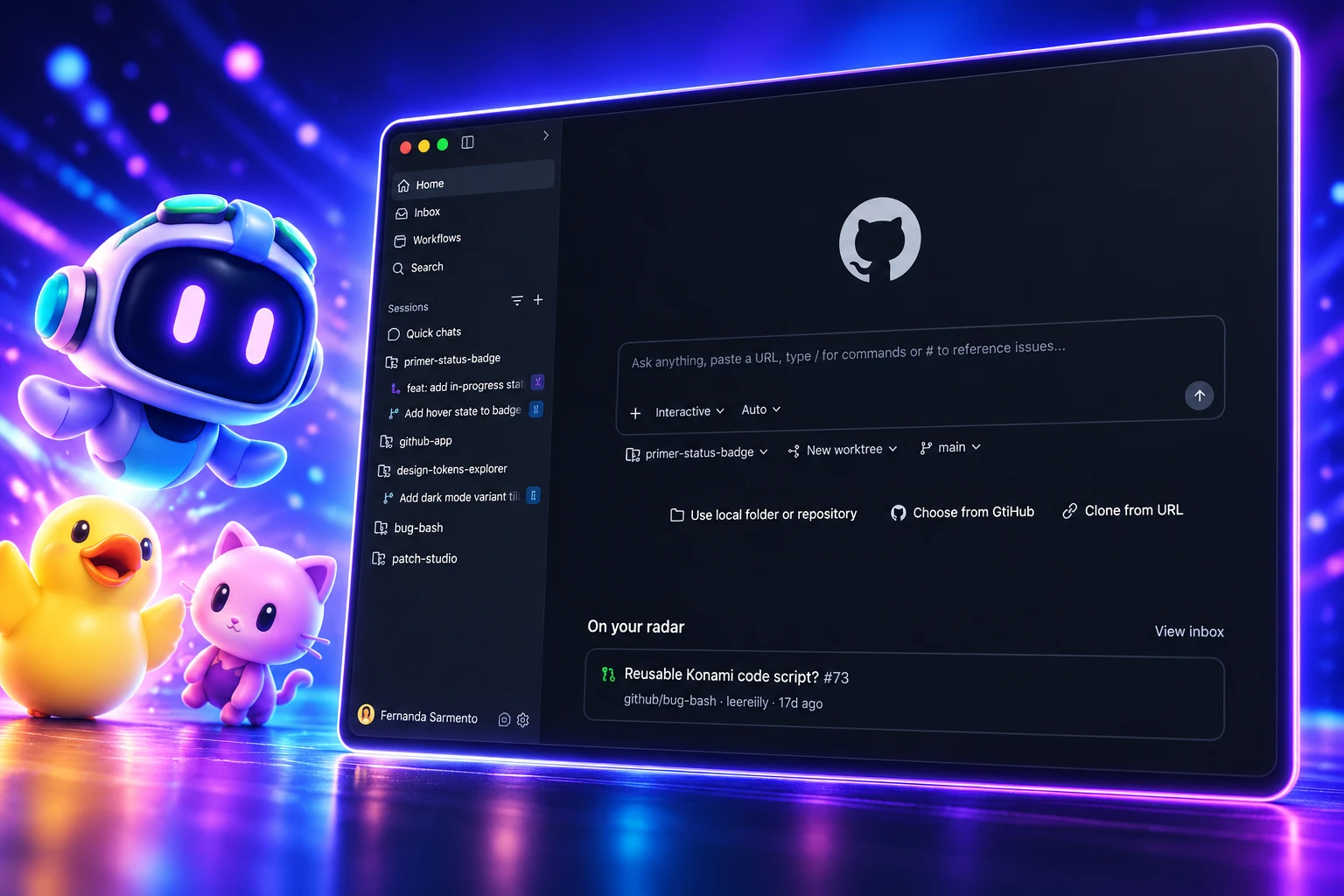
Open My work, click the issue, then hit New session. The app loads that issue as context, you pick Interactive, Plan, or Autopilot, and Copilot starts on its own worktree. You can also select several items, choose Actions, and either spawn one session per request or bundle related bugs into a single session.
GitHub’s own how-to says you start a session from an issue in My work, then choose a mode under the prompt box. Plan has the agent propose a path first. Interactive keeps you in the loop. Autopilot runs with less steering. The issue text, comments, and repo context ride along, so you are not pasting a spec into a blank chat.
Harrison’s prompt for that kickoff is blunt. Tell Copilot, “Hey, let’s get to work on this,” and the session uses the issue as its brief. Back in the list you can multi-select. Independent feature requests become separate sessions. A stack of bug reports on the same feature can share one session if you pick New session after selecting them together.
You can also change the repo the session uses. That matters when the issue lives in a tracker repo and the code lives somewhere else, a split a lot of orgs still run. Near the top of the pane, New issue files a ticket on the spot. Harrison’s example is a light mode toggle: create the issue, then start a session that already has that ticket as context.
GitHub recorded the same flow for the beginner series, and the walkthrough is the fastest way to see the list, the filters, and the Actions bar in one pass.
Once a pull request is in the pane, the overview shows the summary, CI results, and review activity. Files changed opens the diff. New session on that PR lets you leave review comments or ask the agent to patch the feedback without bouncing to the browser.
Worktrees Keep Parallel Agents off the Same Files
The Copilot app is built so you can run parallel workstreams in one desktop app, each session on its own branch and git worktree. A worktree is a real checkout at a separate path, not a stash and not a second clone you manage by hand. The default for a new session is a new working tree. You can instead run in your local repo, or send the job to a cloud sandbox hosted by GitHub, still in public preview.
Mario Rodriguez, GitHub’s chief product officer, put the design problem in the June 2, 2026 Build post. He wrote that “most developer tools were not designed for directing multiple agents in parallel.” Context scatters, you lose track of what is running, and code lands in pull requests without a trail of what the agent tried. The app’s answer is isolation first, then a pane that shows the tickets those isolated sessions are supposed to close.
The GitHub Copilot app is the latest in a line of AI tooling from GitHub that is transforming our business. Moving beyond AI assistance, the app has provided a much-needed control center for agentic development. Our Forward Deployed Engineers can dispatch a cohort of agents and manage multiple initiatives, all from one location.
David Jobling, Master Technology Architect, Avanade
Local sandboxing stays inside your Copilot seat at no extra charge, with limits on files, network, and system calls. Cloud sandboxing bills on three meters GitHub documents: compute at $0.000024 per compute second, memory at $0.000003 per GiB second, and snapshot storage at $0.005 per GiB month. Chats in the sidebar are the lighter path. They do not create a dedicated branch, so they are for scoping a task before you burn a full session.
A September 3 beginner post in the same series makes the parallel case concrete: one session builds a feature, a second runs an accessibility pass, a third runs tests, and the session cards show how far each job has got. That only holds if the worktrees do not share a working tree. Git still forbids checking out the same branch in two worktrees at once, which is why the app mints a fresh one per session unless you override it.
The Extra Load Lands on Human Reviewers
Review requests is the view that gives the game away. Agents can open draft pull requests all afternoon. Someone still has to read them. The pane puts those review asks next to Active issues, so the human job is triage, not typing the first patch.
Rodriguez said commits on GitHub nearly doubled year over year, crossing 1.4 billion commits a month, with more than 2 billion GitHub Actions minutes a week. That volume is why Copilot code review, medium-tier review, and Agent Merge exist. Agent Merge watches CI, required reviewers, and failing checks, then waits until your merge rules pass. You set how far it may go: drive CI green, answer feedback, or merge when the conditions are met.
The same June surge that produced GitHub’s busiest month on record is the backdrop for a pane that looks like project software. If agents author more pull requests, review time becomes the scarce resource. My work does not delete that work. It parks the review ask in the same list as the next issue you might assign, so you see the pile.
Practitioners who have made the app their daily driver still keep an IDE for the hard patch. The Copilot app is where sessions start, diffs get a first look, and merge conditions get watched. The editor is where you step into code Jobling called out as the fallback when a plan or an autopilot is not enough.
Custom Views Use the Filter Language You Already Know
Built-in views are a start. New view drops a placeholder name, which you rename to something like My issues. Filters can be typed in the same GitHub search style you already use, or clicked together in the UI. Harrison’s worked example is Is:Issue plus Assignee:Me, saved so the pane shows tickets on your plate.
Quick filters sit at the top of the current view. Sort can move from Recently updated to Ascending so the oldest items float up. You then save a brand-new view, update the one you are on, or discard the edits. That is GitHub’s issue language moved onto the agent desktop, not a new query dialect.
Default layout is a list that reads like cards. Table layout is the denser board: pick columns, drag their order, resize them, and reset if the experiment fails. You can switch back to the list whenever the cards are easier to scan.
LIST VIEW VERSUS TABLE VIEW
| Layout | What you see | What you can change |
|---|---|---|
| List | Card-style rows for issues and pull requests | Scan quickly; reset is always available |
| Table | Rows with extra columns the list does not show | Show, hide, move, and resize columns |
None of that would matter if the pane were only a reader. The point of a saved view is to sit on top of the same Actions bar, so a My issues filter is also a launch list for new sessions.
The App Opened to Free Plans in July
Harrison’s My work post is the third in the Copilot app for Beginners series, updated August 31, 2026. The app itself is older than the tutorial, and the access story moved twice after Build.
THE COPILOT APP’S PATH TO A WORK QUEUE
- June 2, 2026: GitHub shows the Copilot app in technical preview at Microsoft Build, with My Work as the view for sessions, issues, pull requests, and automations.
- June 17, 2026: Evan Boyle, who builds the Copilot app, CLI, and SDK, posts that the app is generally available, with multi-repo sessions, canvases, isolated worktrees, and cloud sandboxes.
- July 7, 2026: GitHub opens the app on every Copilot plan, including Free and Education, and keeps bring-your-own-key as a path with no Copilot seat.
- August 19, 2026: Harrison publishes the My work beginner guide covering All, Active, Review requests, Done, custom views, and session launch from tickets.
- September 3, 2026: The series shows three agents on one project, each on its own worktree, tracked as session cards.
- September 7, 2026: An Azure DevOps plugin starts listing Boards work items and pull requests inside My work, so those tickets can feed the same session path.
- September 10, 2026: The next beginner post keeps review inside the app with side-by-side diff, terminal, and browser panels.
Boyle’s GA note still drew a basic access question: when would new sign-ups open. Three weeks later GitHub answered by putting a desktop app on every Copilot plan. The download covers macOS, Windows, and Linux. Business and Enterprise still need the Copilot app policy left on, a setting GitHub says is enabled by default and is separate from the Copilot CLI policy.
COPILOT APP PLAN ACCESS
| Plan | Monthly price | Included with the app |
|---|---|---|
| Free | $0 | 2,000 completions, Copilot CLI, Copilot app |
| Pro | $10 per user | Cloud agent, code review, model picks, $15 credits |
| Pro+ | $39 per user | Premium models including Opus, audit logs, $70 credits |
| Max | $100 per user | Priority model access, $200 credits |
Bring-your-own-key still runs sessions against your own provider if you do not want a Copilot seat. The app is built on Copilot CLI, so the same agent runtime shows up in the terminal, in the desktop, and in cloud sandboxes. Sidebar chrome besides My work includes Automations, Customize, Search, Sessions grouped by project, and Chats.
Directing Agents Is the Job This App Protects
Harrison closes the beginner post by sending people to the rest of the videos and to gh.io/app. The deeper shift is the job title implied by the pane. You browse issues, pick a mode, let the agent write and test, then review, check CI, and merge without leaving the window. Docs describe that loop as the typical workflow, and they tell you to start a new session when you switch tasks so stale chat history does not leak into the next ticket.
Companies already talk about managing agents as a core skill. My work is that skill with GitHub’s issue IDs still on the cards. The pane will not decide whether an agent patch is safe. It will keep the open tickets, the review asks, and the session launchers in one list so the person accountable for the merge can see the queue.
On Free, that queue is no longer an enterprise add-on. The remaining work is choosing which issue to send, and which pull request still needs a human eye.

Instagram Plus Tests a Read-Only Mode That Cuts Stories

Altman Asks the Public to Accept Some AI Harm

Google Freezes OSS VRP Product Reports After AI Flood

AI Agents Make Payment Rails the Scarce Prize

Turkey’s Crypto Boom Now Runs Through Three Banks

Fable 5 Came Back Under a Commerce On-Off Switch

Google’s SpaceX GPU Lease Has a Sept. 30 Deadline

Plasma One’s XPL Locks Face a 1.81 Billion Cliff

DGO’s Rs 549 World Cup Pass Cost Fans Sleep and Data

Moonshot AI’s $30 Billion Ask Became a $35 Billion Close
-
 AI4 months ago
Fable 5 Came Back Under a Commerce On-Off Switch
-
 AI5 months ago
Google’s SpaceX GPU Lease Has a Sept. 30 Deadline
-
 CRYPTO4 months ago
Plasma One’s XPL Locks Face a 1.81 Billion Cliff
-
 APPS5 months ago
DGO’s Rs 549 World Cup Pass Cost Fans Sleep and Data
-
 AI5 months ago
Moonshot AI’s $30 Billion Ask Became a $35 Billion Close
-

 NEWS5 months ago
ColorOS 17 Device List Spans Oppo, OnePlus and Realme
-

 GAMING4 months ago
The RTX 4050 Under Rs 70,000 Hides a Wattage Gap
-

 AI4 months ago
Boris Cherny’s Loops Still Demand a Higher Production Bar