
APPS
Gmail Keeps Breaking in iPhone Mail for a Deeper Reason
Standard Gmail iPhone Mail fixes work, but Fetch-only rules and OAuth keep causing delays that push users to Google’s app instead.

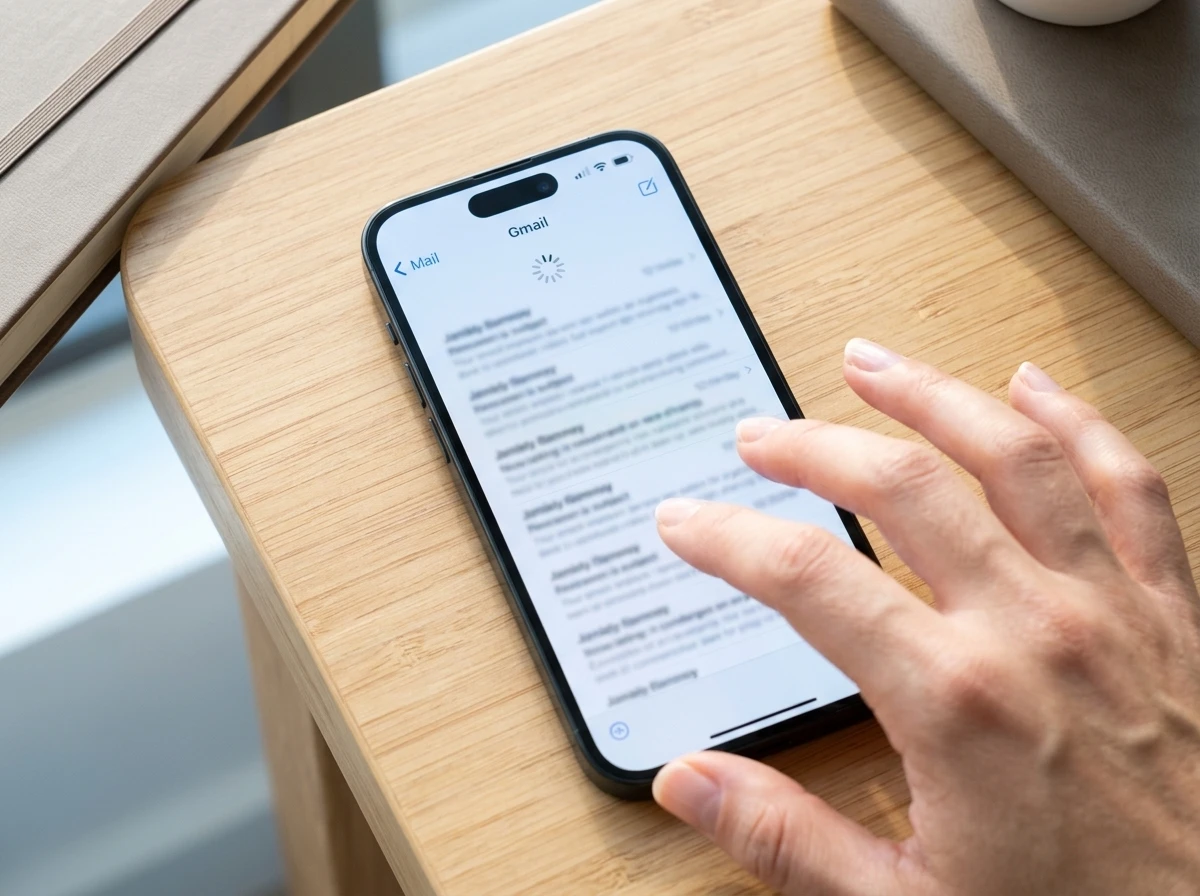
Gmail stops loading, sending, or updating inside the iPhone Mail app for a short list of reasons that still hold in August 2026: service status, connection, a stuck Mail process, Fetch delays, or a stale Google sign-in. The checklist that follows restores most accounts without drama. The second effect arrives after the fix. Gmail inside Apple Mail runs on Fetch, not true Push, so background delivery stays limited and token refreshes keep returning.
Start with the non-destructive checks. Only remove and re-add the account if Mail still refuses to load, send, or refresh.
Why Gmail Breaks Inside Apple Mail
Apple Mail and Gmail talk through OAuth and IMAP. That path is secure and supported, yet it is not the same as the Gmail app’s own connection. Google has long limited full Push for Gmail accounts living inside third-party clients on iOS. Mail therefore falls back to Fetch.
Common triggers line up quickly:
- Gmail or Google Sign-In shows a disruption on the status board
- The iPhone loses Wi-Fi or cellular data, or Low Data Mode throttles background traffic
- Mail freezes or shows an empty or outdated mailbox
- Fetch is set to Manual or Automatically, so new mail waits for a charge-plus-Wi-Fi window
- The OAuth token expires or the account needs a fresh Google sign-in
- A work or school Google Workspace policy blocks IMAP or unmanaged clients
Users on X and forums keep noticing the same pattern: native Mail delivers Gmail later than the official app, and the gap is design, not a one-off glitch. One June 2026 post put it plainly: Gmail does not support Push in the native Mail app, so you have to use Fetch. That used to be different years ago.
Start With Status and Connection
Before you touch account settings, confirm the service and the radio path. Open a browser and check the Google Workspace Status Dashboard. Look at Gmail for the current day. Available is green. Service information, disruption, or outage means wait or use the web client until Google clears it. As of 12 August 2026 the board showed no incidents and Gmail listed as available.
Next confirm the iPhone can reach the network. Open Settings, tap Wi-Fi, and join a working network. Or open Settings, tap Cellular, and turn on Cellular Data. Make sure Mail itself is allowed cellular data if you are off Wi-Fi.
Open Mail, go to the mailbox list, and pull down on the Gmail mailbox to force a refresh. If messages appear, you are done for now. If the view stays blank or frozen, force-quit Mail and restart the phone before you change accounts.
Restart and Refresh Before Touching Accounts
A stuck Mail process is common after an iOS hiccup or a long background session. Closing the app does not delete the Gmail account.
On iPhone X or later, swipe up from the bottom of the Home Screen and pause in the middle. Find Mail in the app switcher, swipe up on its card, then reopen Mail. On iPhone SE, iPhone 8, or earlier, double-click the Home button, find Mail, swipe it away, and reopen.
If the whole phone is unresponsive on iPhone 8 or later, press and quickly release Volume Up, press and quickly release Volume Down, then hold the Side button until the Apple logo appears. That forces a restart.
For a clean restart on modern models (iPhone X and later), hold either Volume button and the Side button until the power-off slider appears. Drag the slider, wait 30 seconds, then hold the Side button until the Apple logo returns. Older SE and button models use the Side or Top button the same way. Open Mail and pull to refresh Gmail again.
If the problem returns after a restart, update iOS. Plug into power, join Wi-Fi, open Settings, tap General, then Software Update. Download and Install if an update is offered. Back up first if you have not done so recently. Wireless update is the usual path; a Mac with Finder can push the update if needed.
Fetch Rules That Quietly Delay Mail
This is the section most people skip and then wonder why mail only arrives when they open the app. Gmail in Apple Mail uses Fetch when Push is unavailable. Apple’s guide when Mail cannot receive states the rule clearly for iOS 11 and later: Automatically is the default, and the device fetches new data in the background only while charging and connected to Wi-Fi.
| Fetch setting | What actually happens for Gmail |
|---|---|
| Push | Usually unavailable for Gmail in Mail; account falls back to Fetch |
| Automatically | Background fetch only while charging and on Wi-Fi |
| Every 15 / 30 / 60 minutes | Periodic checks on a schedule (uses more battery) |
| Manually | New mail only when you open Mail or pull to refresh |
Open Settings, tap Apps, tap Mail, tap Mail Accounts, then Fetch New Data. Set the schedule you can live with. If mail fails only on cellular, confirm Cellular Data is on and Mail is allowed. Turn off Low Data Mode on the active Wi-Fi network (info button beside the network name) and under Cellular Data Options or Data Mode. Low Data Mode is a frequent silent throttle.
These limits explain why a “working” account still feels broken during the day. The mailbox is fine. Background delivery is gated. That second-order friction is why many people eventually open the Gmail app for real-time alerts even when they prefer a unified inbox.
Toggle Then Fully Re-add With Google
If Mail opens but Gmail will not sync cleanly, flip the account switch first. Open Settings, tap Apps, tap Mail, tap Mail Accounts. Select the Gmail or Google account and turn Mail off. Wait a few seconds, turn Mail back on, open the app, and refresh. This resets the local link without a full delete.
When that fails, or when Mail demands a password or shows a username/password error, remove and add the account again with the Google path. First sign in at mail.google.com in a browser so you know the address, password, and mail are intact. Then on the iPhone:
- Open Settings, tap Apps, tap Mail, tap Mail Accounts, select the Gmail account, and tap Delete Account.
- Return to Mail Accounts, tap Add Account, enter the Gmail address, and choose Google when the provider list appears.
- Complete the Google sign-in prompts, allow Mail access, and tap Save.
- For a normal @gmail.com address, always pick Google rather than Other. Manual Other setup is for nonstandard or admin-controlled cases.
Google removed less-secure app password sign-in for ordinary personal accounts years ago and completed the broader transition away from less secure apps for Workspace on the March 2025 timeline. OAuth is the supported route. If sign-in keeps failing, complete any CAPTCHA that appears at mail.google.com in Safari, then try adding the account again. Apple steps to add an email account match this Google-first flow. Google’s third-party client setup rules also stress selecting the Google option on mobile Mail.
With iOS 11 and later, and iPadOS, Automatically is set by default. Your device will only fetch new data in the background when it is charging and connected to Wi-Fi.
That line from Apple’s own receive-email guide is the quiet center of most “it only works when I open the app” reports.
Messages stuck in Outbox are usually the same token problem. Open the mailbox list, tap Outbox if it appears, open the message, confirm the address, and tap Send. If it still sits, finish the re-add steps above so the SMTP path is fresh.
Work Accounts, Notifications, and the Gmail App Fallback
Sometimes Gmail is fine and the symptom is elsewhere. If messages arrive but alerts do not, open Settings, tap Notifications, tap Mail, and set Alerts, Sounds, and Badges the way you want. If links or Siri open the wrong client, open Settings, tap Apps, tap Mail, tap Default Mail App, and choose Mail. If the Mail icon is missing, swipe to the App Library, search for Mail, touch and hold, and add it to the Home Screen. If Mail was deleted, reinstall it from the App Store, confirm mail.google.com works, then add the account again.
What we know
- Deleting the Gmail account from Mail removes it only from the iPhone; server mail stays at Google.
- Personal @gmail.com almost always works with the Google button and OAuth.
- Fetch background behavior is intentional and documented by Apple.
What stays unconfirmed without your admin
- Exact IMAP or client restrictions on a specific Workspace domain
- Whether a configuration profile or MDM is silently blocking Mail traffic
For stubborn connection issues after the easy steps, reset network settings: Settings, General, Transfer or Reset iPhone, Reset, Reset Network Settings. You will rejoin Wi-Fi afterward. This does not erase photos or apps. If a removable profile looks suspicious, check Settings, General, VPN & Device Management and remove only what your organization allows.
Work or school Google Workspace accounts are different. Admins can disable IMAP or block unmanaged mail clients. If personal Gmail works and the work account does not, contact the admin or switch to the official Gmail app while the policy is sorted. That app is the practical fallback for any account that keeps failing inside Mail. Install or update it from the App Store, sign in, and keep working. Just remember that Google’s own apps can be heavy on battery; some of the same trade-offs appear in wider reporting on how Google apps affect battery life.
The short-term fix is almost always status check, restart, Fetch adjustment, toggle, or clean Google re-add. The longer pattern is that Apple Mail remains a convenient but second-class home for Gmail: secure, unified, and permanently on a Fetch leash. People who need instant alerts end up with two apps. That is the cost the checklist never quite erases.
Frequently Asked Questions
Why does Gmail refresh only when I open the Mail app?
Gmail accounts in Apple Mail use Fetch because true Push is not offered for them. On iOS 11 and later the Automatically option runs background fetch only while the iPhone is charging and on Wi-Fi, so daytime mail often waits until you open the app or pull to refresh.
Should I choose Google or Other when adding Gmail?
Choose Google for a normal @gmail.com or standard Workspace account. That path runs the current OAuth sign-in. Other is mainly for legacy, delegated, or specially configured servers that need manual IMAP and SMTP fields.
Will deleting the Gmail account from Mail delete my messages?
No. Sign in at mail.google.com first to confirm everything is on Google’s servers. Deleting the account only removes the account from the iPhone Mail app so you can add it cleanly again.
What should I do if my work Gmail will not work in Apple Mail?
If personal Gmail works but the work or school account fails, the organization may have turned off IMAP or blocked unmanaged clients. Ask the admin for the allowed path, or use the official Gmail app, which often stays permitted under mobile management.
Does Low Data Mode stop Gmail from updating in Mail?
Yes, it can. Low Data Mode on Wi-Fi or cellular reduces background activity. Turn it off for the active network and for cellular data options if Fetch or refresh only works on unrestricted connections.


South Korea Retail Investors Face Reckoning After KOSPI AI Rally Collapses

Surrey AI Maps Three Heart Attack Paths and Their Molecular Roots

Germany Locks Neutral Apple ATT Prompts Across Most of Europe

Apple’s 5% EU Fee Quietly Rewrites Alternative App Store Math

Apple’s EU Fee Truce Cuts Complexity but Leaves Rivals Fuming

Pixel 11 Pro Fold Trades Thinness for Durability and Seven-Year Stay

Mayo AI Flags HCM Obstruction From Everyday Ultrasound Videos

Indian Brands Quietly Scale Landmark Screens and Home Tech

Navin Vatsa Turns Grief Into a Lifetime of Quiet Seeing

Google Bets Pixel 11 Agentic AI Will Redefine Phones

Oracle Cuts 21,000 Jobs in a Year, Cites AI in 10-K Filing

Fable 5 and Mythos 5 Return as US Lifts Anthropic Export Controls

SpaceX’s Google Deal Turns a Rocket Company Into a Cloud Landlord

CD Projekt Red Co-CEO: Redemption Arc Isn’t Done, Witcher 4 in 2027

XPL Rallies 30% Ahead of Plasma One Card Tier Launch

Google Search Profiles Build a Follow Graph Inside Discover

DGO App Brings Rs 549 Mobile Pass for FIFA World Cup 2026 in Nepal

Moonshot AI Targets $30 Billion in China’s Fastest AI Funding Sprint

Oppo’s ColorOS 17 Eligibility List Leaves A-Series Buyers Behind

Microsoft Xbox Layoffs Start in July as Sharma Slams 3% Margin
-
 AI2 months ago
Oracle Cuts 21,000 Jobs in a Year, Cites AI in 10-K Filing
-
 AI2 months ago
Fable 5 and Mythos 5 Return as US Lifts Anthropic Export Controls
-
 AI3 months ago
SpaceX’s Google Deal Turns a Rocket Company Into a Cloud Landlord
-
 GAMING2 months ago
CD Projekt Red Co-CEO: Redemption Arc Isn’t Done, Witcher 4 in 2027
-
 CRYPTO3 months ago
XPL Rallies 30% Ahead of Plasma One Card Tier Launch
-
 NEWS3 months ago
Google Search Profiles Build a Follow Graph Inside Discover
-
 APPS3 months ago
DGO App Brings Rs 549 Mobile Pass for FIFA World Cup 2026 in Nepal
-
 AI3 months ago
Moonshot AI Targets $30 Billion in China’s Fastest AI Funding Sprint