
COMPUTERS
Shizuku Setup on a Smart TV: How Termux Gets a Shell
Shizuku setup on a smart TV follows the Android version: wireless debugging from Android 13, a PC on older sets, and a fresh start after every reboot.

A smart TV already has a computer inside it, and Termux can put a Linux terminal on that screen. A Shizuku setup is the step that lets Termux and other apps use Android’s debugging access without unlocking the bootloader.
The service has to be started in one of three ways, and it stops when the TV reboots. The right way depends on the Android version and on whether Wireless debugging shows up in the settings. Those three starts, the handoff into Termux, and the fixes for a service that dies are all below.
What Does Shizuku Change on an Android TV?
Termux and Shizuku get mixed together because you install them in the same sitting. They do different jobs, and only one of them is the Linux environment.
- Termux: A terminal app and a Linux environment that runs with the rights of a normal app.
- Shizuku: A helper service you start with ADB, or with root if the TV already has root, so other apps can call system tools at that higher level.
- rish: A shell launcher Shizuku can hand to Termux, so the commands you type run with the same access as the helper.
You do not unlock the bootloader for the ADB path, and you do not install a root manager. Shizuku’s developers describe the helper as a process that already holds root or ADB access, then lends that access to apps through the normal way Android apps talk to system services. The programs you later install inside Termux stay Termux programs until you run them through rish.
On GrapheneOS, Shizuku’s manual says Secure app spawning, under Settings and Security, may need to be turned off before the helper will start. That switch is rare on a living-room set. The service still has to be started, and the TV in the room may not offer the same start button a phone does.
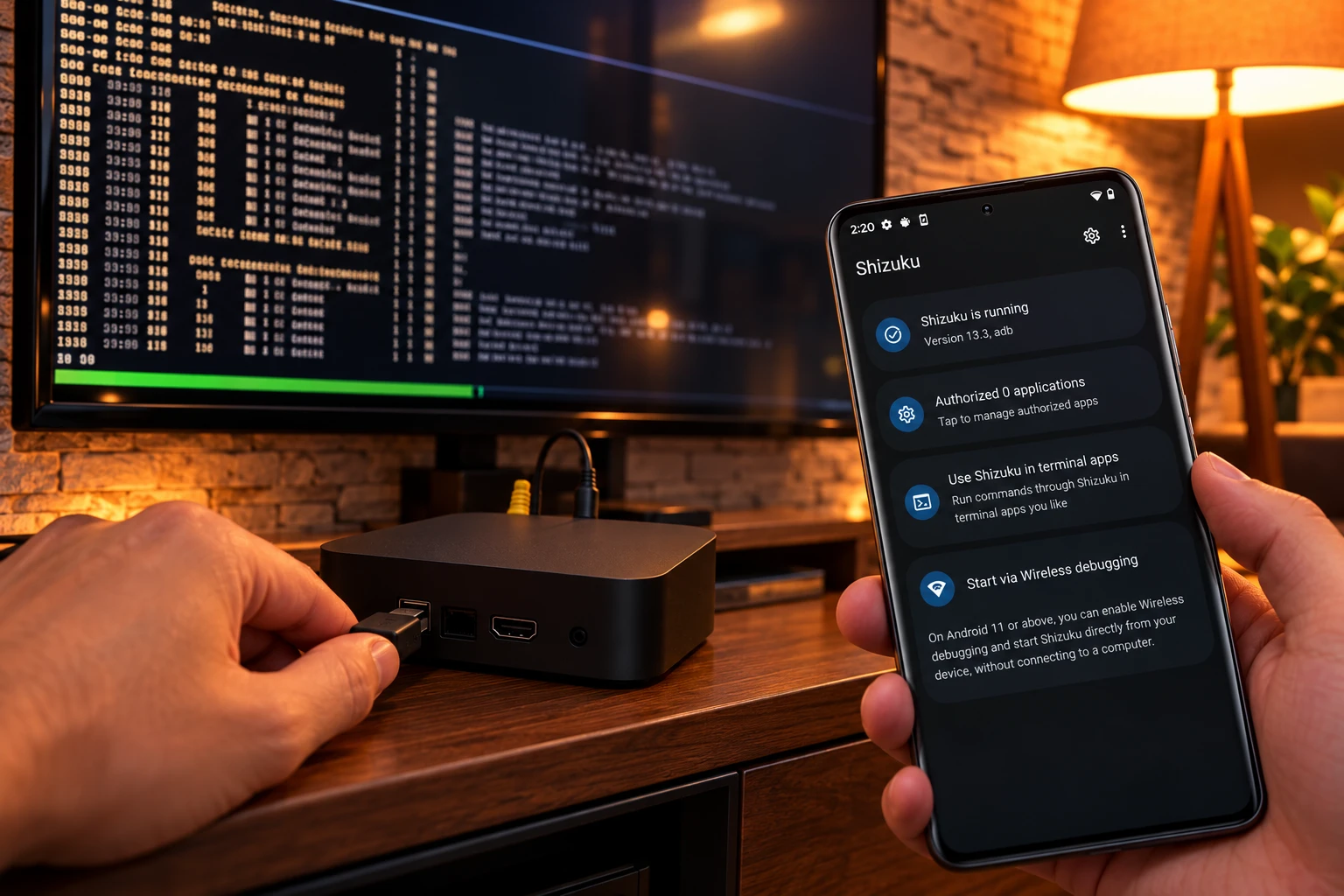
Which Start Method Matches the TV?
Shizuku’s own setup manual still describes wireless startup as an Android 11 feature, which matches phones. On a television, follow Google’s wireless debugging requirements and look for that menu only on Android 13 (API level 33) or higher.
| What the TV shows | How you start | Computer | After a reboot |
|---|---|---|---|
| Android 13 (API level 33) or higher, and Wireless debugging is in Developer options | Start via wireless debugging inside Shizuku | Not needed | Pairing can stay; do the start steps again |
| No Wireless debugging row, or Android 10 or older | Start by connecting a computer and running Shizuku’s script | Needed each time you start the service | Run the adb command again |
| The TV is already rooted | Start with root inside the Shizuku app | Not needed | Allow Shizuku to run in the background if it does not start on boot |
Match the row to the menu on the set, not to a phone article that stops at Android 11. A Google TV on Android 13 that lists Wireless debugging can pair from the remote. A set on Android 9, or any set whose developer screen has USB debugging and nothing wireless, needs the computer each time it boots.
If the TV is rooted, open Shizuku and start it directly. There is no pairing code and no computer. If that start does not come back on its own after a reboot, let Shizuku keep running in the background, which is the fix Shizuku gives for a root start that will not return at boot.
How to Pair Shizuku With Wireless Debugging
Use this path only when Developer options on the TV actually contains Wireless debugging. Install Shizuku first and open it once so the pairing control is there.
- On the Android TV steps in Google’s Cast notes, open Settings, choose About in the Device row, and press Build several times until the set says you are now a developer. Leave that screen and go back to the home screen once so the change applies. It stays until a factory reset.
- Open Developer options and turn on USB debugging. Then open Wireless debugging and turn that on too. The set should be on your Wi-Fi, because the pairing search needs the local network.
- In Shizuku, start pairing and allow notifications when Android asks. The code is typed into Shizuku’s notification, so a blocked notification leaves you with nowhere to enter it.
- On the Wireless debugging screen, tap “Pair device with pairing code” and leave that dialog up.
- Open Shizuku’s notification and enter the code. Pairing is finished when Shizuku says it succeeded.
- Return to Shizuku and start the service. If it does not start, turn Wireless debugging off and on, then start again.
If the app sits on “Searching for pairing service,” it has not found Android’s pairing service on the local network. Let Shizuku run in the background, and let it use the local network. Some makers cut network access as soon as an app leaves the screen, which is the case Shizuku’s manual names for this message.
LEAVE DEBUGGING ON A NETWORK YOU TRUST
- The prompt: The TV asks you to allow debugging before a computer can run commands, and that yes is the lock.
- The network: Pair on Wi-Fi you control, and turn wireless debugging off when guests use the same network.
- The switches to keep: Leave Developer options and USB debugging on, or Shizuku stops even if you only meant to tidy the settings.
A missing notification is a dead end on this path, not a reason to reinstall the app. If the developer screen has no Wireless debugging row at all, the on-TV pair cannot start, and the computer path is the one that matches the set.
How to Start Shizuku From a Computer
Shizuku documents this start for an unrooted device on Android 10 or below. The same command is also the way in when a newer TV simply has no Wireless debugging switch, because the on-device method then has nothing to pair with. You will run the start again after every reboot. The computer does not have to stay plugged in once the app shows the service is running.
Download SDK Platform Tools from Google and unzip them into a folder you can find again. On Windows 10, open that folder and choose the PowerShell window (hold Shift while you right-click). On a Mac or Linux machine, open a terminal in that same folder. In PowerShell, on a Mac, or on Linux, type./adb anywhere the steps say adb. Type adb alone and you should get a long help list, not a message that the command is missing. Leave that window open.
- Turn on developer options the same way as above, then turn on USB debugging. Shizuku notes that the taps differ by model, so use Build, or the version line your set actually shows, and press it several times until the developer message appears.
- Connect the TV to the computer with a USB cable when the set has a data port you can reach. Type adb devices. Accept the allow-debugging dialog on the TV, tick always allow, and confirm with the remote.
- Type adb devices again. A working link looks like Shizuku’s example: a “List of devices attached” heading, then a line that ends with “device.”
- Paste the start command for Shizuku v11.2.0 or newer:
adb shell sh /sdcard/Android/data/moe.shizuku.privileged.api/start.sh - Watch the Shizuku app. A clean start shows the service running. If the app prints a different command under its computer section, paste that line instead of this one.
Many TVs are mounted where a USB cable is a one-time bother, not a daily habit. Google’s Android TV debugging steps put the IP address under the Device row, then Network, Wi-Fi, the connected network, and Status info. Use the address on that screen if your menus still follow that path.
- Address on the TV: If Wireless debugging itself prints an address and a port, use that pair, not a port you remember from a phone.
- Retail set, older path: With USB already authorized, run
adb tcpip 5555, unplug, thenadb connectto the TV’s IP address on port 5555 and accept the prompt. - The other port on that page: The Wi-Fi example and the developer-issue path both use port 4321, so use 4321 only when you are on that case.
Port 5555 and port 4321 are different procedures in the same Google notes, not two labels for one socket. Once adb devices lists the TV, run the Shizuku start command above. When the app says the service is running, you can close the terminal. Termux is what turns that running service into a shell you can type in.
How to Give Termux a Shizuku Shell
Termux is the Linux side of this project: a terminal plus the packages you add inside it. Shizuku does not install those packages. It only lends access, and only while its service is up.
Install Termux From One Official Source
The Termux project supports full app and package use on Android 7 and newer. Install one current build and stay with that source, because the app and its plugins share one id and must be signed with the same key.
- Prefer F-Droid, or a GitHub release of version 0.118.0 or newer. The project page lists v0.118.3 as the current release and asks people to move to 0.118.0 or newer.
- Treat the Play Store build as the experimental branch the project describes for Android 11 and newer. It is missing pieces the F-Droid build has, so it is a poor fit when you want the full environment on a TV.
- Do not mix an F-Droid Termux with a GitHub plugin, or the reverse. Android rejects the second install when the signatures do not match.
- Sideload the APK with the computer you already trusted for adb, from the official release, and open Termux once on the TV so it can unpack its shell.
GitHub release files from the Termux project are signed with a test key the project has shared publicly. Install those files only from the Termux project itself. A copy passed around in a chat can be swapped for a different app that still installs over that key.
Point rish at the Termux App
The rish shell Shizuku documents is a stand-in for the remote shell. You create its files from the steps inside the Shizuku app, then run it from Termux in place of the ordinary shell. Keep rish and rish_shizuku.dex in the same folder. The launcher stops if the dex file is missing and points you back to the in-app tutorial.
- The app id: In Termux, set
RISH_APPLICATION_IDtocom.termuxbefore you launch rish. The script ships with a placeholder in that spot. - A first command:
rish -c 'ls'should run on the remote shell. You can also startrishwith no arguments and type there. - A writable dex file: On Android 14 and newer the script refuses a dex file that stays writable. It tries to clear that write bit, and if it cannot, it tells you to copy both files into the terminal app’s private folder.
Termux’s warning for Android 12 matters on a TV that stays awake for hours. From Android 12 on, the system can kill phantom processes past a combined limit of 32 for every app, and it can kill a process that uses a lot of CPU. The terminal then reports that the process completed with signal 9 and asks you to press Enter. The project says a switch to stop that killing should be present in Android 12L or 13. A shell that vanishes on those versions is hitting that limit, not a failed pair.
From a working rish prompt, package installs and any desktop session are the separate work of turning a smart TV into a Linux computer. That work assumes this service is already running. rish under an ADB start does not gain Termux’s own program folders, so a command that works in a normal Termux prompt can fail inside rish until you call it in a way the ADB user is allowed to see.
What Happens to Shizuku After a Reboot?
A television reboots for system updates, for a power cut, and sometimes because a HDMI device woke it badly. The Shizuku service started by wireless debugging or by adb does not survive that reboot. Shizuku says the startup steps have to be done again, while pairing only has to be done once.
AFTER THE SET POWERS BACK ON
- Keep: Developer options, USB debugging, and a pairing you already finished.
- Repeat: The start for your method, either the Start action in Shizuku or the adb command.
- Skip: Reinstalling Termux, exporting rish again, or typing the pairing code a second time.
Google’s notes on Android TV say those developer settings persist until a factory reset. After a reset, the build taps, the allow prompt, both apps, and the pairing all have to be done again. Revoking ADB authorizations on the TV has the same effect on a saved pair: the computer or the on-device pair is forgotten, and you pair again.
A rooted set is the exception in the table, and even there Shizuku does not promise a silent start at boot. Background permission is the condition it names when a root start fails to return. Open Shizuku after any reboot before you open Termux, and check that the service is running before you type.
Fixes When Shizuku Will Not Stay Running
When the start fails before you ever reach a clean reboot, Shizuku’s manual points at changes makers have made to Android. Apply the row that matches the software on the device where Shizuku is installed. A near-stock Google TV will not show the MIUI or ColorOS switches. The rows marked for every device still apply there.
| What you see | Where Shizuku names it | What to change |
|---|---|---|
| Stays on “Searching for pairing service” | Any device that cuts network access when an app is hidden | Let Shizuku run in the background and reach the local network |
| Fails as soon as you enter the pairing code | MIUI on Xiaomi and POCO | Set the notification style to Android, under Notification and Notification shade |
| ADB access is limited | MIUI on Xiaomi and POCO | Turn on “USB debugging (Security options),” a separate switch from USB debugging |
| ADB access is limited | ColorOS on OPPO and OnePlus | Turn off Permission monitoring in Developer options |
| ADB access is limited | Flyme on Meizu | Turn off Flyme payment protection in Developer options |
| The service stops on its own | Every device | Keep Shizuku in the background, leave Developer options and USB debugging on, set USB mode to Charge only on Android 8 (“Select USB configuration”) or to “No data transfer” on Android 9 and newer (“Default USB configuration”), and on Android 11 and newer turn on “Disable adb authorization timeout” |
| The service stops on its own | EMUI on Huawei | Turn on “Allow ADB debugging options in Charge only mode” |
| Developer options switch themselves off | MIUI on Xiaomi and POCO | Do not use the scan in the Security app, which turns Developer options off |
| USB mode changes after you plug in | Sony | Do not tap the dialog that appears when the cable connects |
| Root start will not run at boot | Rooted devices | Allow Shizuku to run in the background |
Xiaomi, Sony, and Huawei ship televisions as well as phones, so a living-room set can still be one of those rows. If your brand is not in the table and the service dies overnight, start with the every-device row: background running, both debugging switches left on, and the USB mode set to charge rather than file transfer. Toggling Wireless debugging off and on remains Shizuku’s first remedy when the wireless start simply does not take.
Frequently Asked Questions
Can You Unplug the Computer After Shizuku Starts?
You can. Once the Shizuku app shows that the service is running, the computer has finished its work for this boot. Disconnecting the cable or closing the terminal does not stop the service. A reboot does, and so does switching off Developer options or USB debugging.
Which Termux Build Should You Install on the TV?
Use the F-Droid build or a release from the Termux project on GitHub, and skip APK files forwarded in chats. The project treats the Play Store edition as an experimental branch with pieces missing, and it points most people to F-Droid or GitHub. Keep every Termux plugin on that same source. The apps share one id, the files from different sources are signed with different keys, and Android blocks the mix.
Why Does rish Say the Dex File Is Missing or Writable?
The launcher expects rish and rish_shizuku.dex in the same folder. Moving one file without the other produces the missing-file stop, and the message sends you back to the tutorial inside Shizuku. On Android 14 and newer, a dex file that stays writable is also refused. The script tries to clear that write permission, and if it cannot, it tells you to copy both files into Termux’s private folder.
Should Wireless Debugging Stay on Between Sessions?
Turn it off when the television shares its Wi-Fi with people you do not trust. A computer that has already been allowed on that network can send debugging commands while the switch is on. Turning wireless debugging off does not remove Shizuku or Termux. You switch it on again the next time you start the service, and you leave Developer options and USB debugging enabled so that later start can work.
The next time the television installs an update and comes back on, open Shizuku before you open Termux. If the status is stopped, run the same start you used the first time, and leave the pairing code alone unless you revoked debugging or reset the set.

OpenAI’s 372 Math Results Force Departments to Rethink Hiring

Instagram Plus Tests a Read-Only Mode That Cuts Stories

Altman Asks the Public to Accept Some AI Harm

Google Freezes OSS VRP Product Reports After AI Flood

AI Agents Make Payment Rails the Scarce Prize

Fable 5 Came Back Under a Commerce On-Off Switch

Google’s SpaceX GPU Lease Has a Sept. 30 Deadline

Plasma One’s XPL Locks Face a 1.81 Billion Cliff

DGO’s Rs 549 World Cup Pass Cost Fans Sleep and Data

Moonshot AI’s $30 Billion Ask Became a $35 Billion Close
-
 AI4 months ago
Fable 5 Came Back Under a Commerce On-Off Switch
-
 AI5 months ago
Google’s SpaceX GPU Lease Has a Sept. 30 Deadline
-
 CRYPTO5 months ago
Plasma One’s XPL Locks Face a 1.81 Billion Cliff
-
 APPS5 months ago
DGO’s Rs 549 World Cup Pass Cost Fans Sleep and Data
-
 AI5 months ago
Moonshot AI’s $30 Billion Ask Became a $35 Billion Close
-
 NEWS5 months ago
ColorOS 17 Device List Spans Oppo, OnePlus and Realme
-
 GAMING4 months ago
The RTX 4050 Under Rs 70,000 Hides a Wattage Gap
-

 AI4 months ago
Boris Cherny’s Loops Still Demand a Higher Production Bar