
PHONES
Samsung Edge Lighting: How to Turn It On and Read LED Colors
Samsung Edge lighting is the screen glow that replaced the notification LED. Turn it on under Brief pop-ups, then match a blink to the US or UK color chart.

You keep glancing at the top corner of your Galaxy, waiting for a small blink that never comes. On models built without a bezel lamp, that corner stays dark for good. Samsung Edge lighting is the colored glow the screen draws along its edges when an alert arrives.
On current software you turn that glow on under Notifications. Open Settings, tap Notifications, tap Notification pop-up style, choose Brief, pick an effect, and turn on the switch that shows the glow while the screen is off.
The rest of this page covers the older Edge screen menu, what blue, red, and green still mean on a phone that has a real LED, and the checks to run when the edges stay dark.
Where the Notification Light Went on Galaxy Phones
To make room for a larger AMOLED screen, the tiny LED from earlier Galaxy phones gave way to a glow the display draws itself. Samsung’s Edge lighting and LED guide puts that change at the S10 and later, where the Galaxy S10, Note10, and newer phones do not have a notification LED.
A second light sits around the front camera hole, and it is easy to mistake for an alert. When you use face recognition or switch to the selfie camera, a lit design circles that hole so you know where to look. Seeing the ring while you unlock the phone does not mean notification lighting is on.
The notification glow is a separate behavior from that camera reminder. You can make light appear around the screen and around the camera cutout when an alert arrives. If the only ring you ever see is the one during face unlock, the notification effect is still unset.
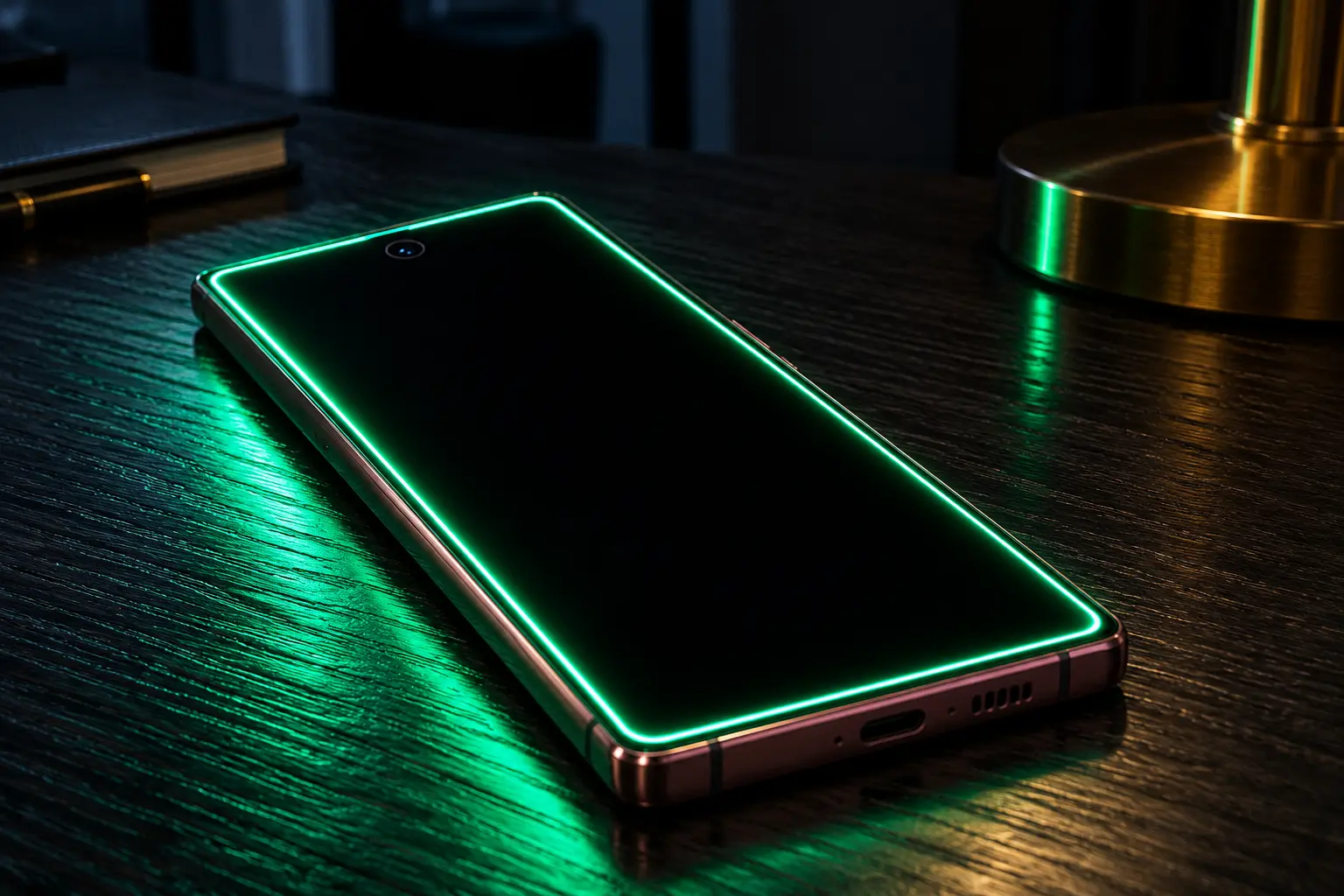
How to Turn On Samsung Edge Lighting
On current Galaxy software, picking an effect is what turns the glow on, and you can preview each look by tapping it before you save.
- Open Settings, tap Notifications, then tap Notification pop-up style.
- Select Brief at the top of that screen, because the edge options belong to this style.
- Tap Edge lighting style and choose an effect. Examples you can tap for a preview include Basic, Bubble, and Heart.
- Tap Color, then choose auto or a color of your own.
- Tap Advanced, set transparency, width, and duration, then tap Done.
Brief is the choice that decides whether the animation can play. Leave the pop-up style on Detailed and the edge animation does not run, which is why people who want the glow switch to Brief and stay there. The brief card also takes less of the screen when it arrives, so you get the border light and a smaller alert together.
To turn the glow off later, switch Notification pop-up style from Brief back to Detailed. The edge animation is tied to Brief, so the longer card returns and the border stays dark.
Show even while screen is off is the other switch that makes the phone seem to have no light at all. Back on Notification pop-up style, with Brief selected, turn that option on. Without it, a test you run while Settings is open can look perfect, and the lock screen still stays dark. On some software the label reads as show brief notifications with the screen off. It is the same permission: the glow is allowed to run after the display has gone to sleep.
The preview you get by tapping an effect only plays inside that settings screen. A real alert on the lock screen still depends on the screen-off switch, the app being allowed under Apps to show as brief, and the phone actually receiving a notification.
Samsung UK’s support channel shows those same Notifications taps, and the clip is titled for a phone or a tablet.
When the Button Says Add Lighting Effect
Menu names shifted on newer software, so the same screen can wear two labels. Samsung’s Colombia support page, updated September 24, 2026, tells you to open Notification pop-up style and then tap Edge lighting style or Add lighting effect, whichever label the phone shows.
- Color still offers an automatic color or one you pick.
- Advanced still covers transparency, width, and duration.
- Done saves the preview you just watched.
Edge lighting is missing on some Galaxy phones, and menus can differ by country, software version, or carrier. If a Settings search still shows no row for it, use flash notifications instead of hunting a menu the model does not have.
The Older Edge Screen Menu
Phones on the earlier layout keep Edge lighting under Display, which is why a guide from that period will not match the steps above. Samsung UK’s notification light colour guide, updated December 18, 2020, uses this order.
- Open Settings, tap Display, then tap Edge screen.
- Turn on Edge lighting.
- Tap Edge lighting, then Show Edge lighting, and choose While screen is on, While screen is off, or Always.
- Open Edge lighting style and set the effect, colour, transparency, width, and duration, then tap Done.
- Turn on Edge lighting interaction if you want a tap or a swipe on the pop-up to open the app or clear the alert.
- Open Manage notifications and choose which apps may light the edge. Some apps are not compatible.
That older screen can also color-code up to five contacts, with everyone else shown in a neutral bright light. The current Brief menu does not use that five-person list. It uses one effect color, plus Color by keyword for words you mark yourself.
How to Set Colors, Keywords, and Duration
Once Brief is selected, the notification pop-up style screen holds the controls that decide whose alert you see and what it looks like. Auto color lets the phone pick the hue. A custom color keeps one hue for alerts that are not matched to a keyword.
INSIDE THE BRIEF SCREEN
- Apps to show as brief: Each switch chooses an app that uses the brief pop-up and the edge glow.
- Edge lighting style: This holds the effect, the color, and the advanced sliders.
- Color by keyword: You add an important word and assign it a color so that alert stands out.
- Screen-off option: This is the lock screen permission described above, under its label on your phone.
A keyword color only helps when that app is switched on under Apps to show as brief, because both controls live on the Brief screen. Transparency sets how see-through the band is, width sets how thick it is, and duration sets how long it plays.
Duration is the gap people notice after they leave a phone with a real LED. The glow follows the time you set, and it starts when the alert arrives. It does not stay lit until you unlock the phone and clear the message, which is what the bezel lamp did on those older models.
Which Galaxy Phones Still Have an LED?
If your phone is older than the S10 line, you may still have a real lamp, and Edge lighting is an extra rather than the only light. The have-list on the UK page, the one linked above, stops at the S9 and Note9 lines, plus the Galaxy Alpha. That page names the Note10 and the S20 as phones without the lamp. The US page is explicit that S10, Note10, and newer phones do not have a notification LED.
MODELS THE UK PAGE LISTS WITH AN LED
- Galaxy S: S9, S9+, S8, S8 Plus, S7, S7 Edge, S6, S6 Edge, S5, S4 Active, S4 Zoom, S4, S II Plus, and S III.
- Galaxy Note: Note9, Note8, Note7, Note5, Note Edge, Note4, Note3 Neo, Note3, and Note II.
- Also listed: Galaxy Alpha.
On a phone that has the lamp, it sits at the top left of the front. Not every older Galaxy has one, so a missing lamp on a model that is not in that list is normal. The lamp is also separate from Edge lighting, and turning on the screen glow does not add a hardware dot to a phone that shipped without one.
Blue, red, and green are not safe to memorize from a single chart. The US guide and the UK guide swap the meaning of a blink, while a steady glow matches on both. Read the row for the pattern you actually see, and follow the column for the guide that matches your region.
| What you see | US guide | UK guide |
|---|---|---|
| Blue, pulsing | The phone is turning on or off | The phone is turning on or off |
| Blue, blinking | Unread alert, or voice recording | Plugged in but not charging, or the battery is low |
| Red, glowing | Plugged in and charging | Plugged in and charging |
| Red, blinking | Plugged in but not charging, or the battery is low | Unread alert, or voice recording |
| Green, glowing | Plugged in and fully charged | Plugged in and fully charged |
| Green, blinking | Fully charged | Fully charged |
| White, purple, or pink | A third-party app that sets its own LED color | An app notification, with the color set in that app |
On the UK guide, blinking red is an unread alert or a voice recording, and blinking blue is a charge problem or a low battery. Those two blinks are reversed on the US guide. Steady red means charging on both guides, and green means a full battery on both.
You can turn the hardware lamp on or off, and the UK page gives three paths because the menu changed across those older phones. Try Settings, then Display, then LED indicator. If that row is missing, try Settings, then Sound and notifications, then LED indicator.
The third path is Settings, then Notifications, then Do not disturb, then Hide notifications, then No LED indicator. Use the row your phone actually shows. A phone from the S10, Note10, and newer group will not have any of these rows, because it has no lamp to toggle.
What to Check When Edge Lighting Stays Dark
When the preview plays in Settings and real alerts stay dark, the cause sits in a switch outside the effect picker. Confirm the system software is up to date before the checks below, which is the order on the Colombia page.
IF THE EDGES STAY DARK
- The style: Brief has to be selected, and an effect has to be chosen, or the glow has nothing to play.
- The screen: Show even while screen is off has to be on for a sleeping or locked phone.
- Animations: Reduce animations, under Settings, then Accessibility, then Vision enhancements, turns off system animations, including Edge lighting, so that switch needs to be off.
- Good Lock: If Good Lock on the Play Store is already installed, open its Notifications section and turn Edge lighting+ off before you judge the built-in glow.
- The app: Edge lighting may not work with third-party apps, and WhatsApp needs high-priority notifications plus pop-up notifications in the app’s own notification screen.
WhatsApp’s taps on that Colombia page are the three dots at the top, then Settings, then Notifications. WhatsApp’s notification settings on Android is the app’s own page for those switches. A keyword color will not help an app that is switched off under Apps to show as brief.
Do Not Disturb can swallow the alert, and with no alert there is no edge glow to see, so turn it off for one test. If the edges still stay dark, turn Always On Display off and send one more test alert. A Samsung community thread traced a dead glow to Always On Display left on, so that single test separates the two.
How to Turn On Flash Notifications
Some Galaxy phones have neither a bezel LED nor Edge lighting. Flash notifications are the stand-in on those models, and the menu name depends on the software.
For the path in the US guide, open Settings, tap Accessibility, tap Advanced settings, tap Flash notification, and pick the options you want. If your menus match the Colombia guide updated September 24, 2026, open Settings, tap Accessibility, tap Hearing enhancements, tap Flash notifications, then choose camera flash, screen flash, or both. When you choose selected apps, tick only the apps that should flash.
Screen flash washes the display for a moment. Camera flash uses the light on the back, so you can still see it when the phone is face down on a table, which the on-screen edge glow cannot do. Neither flash stays blinking for old unread alerts. Each one fires when a new alert comes in.
Frequently Asked Questions
Does Edge Lighting Stay On Until You Read It?
No, the glow does not stay on until you read the alert. It runs for the duration you set under Advanced, then it stops, and it starts only when a new alert arrives. Lock screen notification icons are the separate control if you want a mark that is still there the next time you look.
Can Edge Lighting Show That the Battery Is Charging?
No, Edge lighting does not show that the battery is charging. The effect is tied to incoming notifications. Red and green charge lights belong to the hardware LED on phones that still have one, and this menu does not recreate them.
Will You See the Glow If the Phone Is Face Down?
No, you will not see the glow if the phone is face down. Edge lighting is drawn on the screen, so the table hides it. Camera flash, inside Flash notifications, uses the light on the back, which you can still see with the screen down.
Does Edge Lighting Work on a Galaxy Tablet?
The official Samsung UK clip on this feature is titled for a phone or a tablet, and the taps in it are Settings, then Notifications, then Notification pop-up style. If that menu is missing, search Settings for Edge lighting, and use flash notifications when the model has no edge effect.
Why Are There Fewer Effects on My Phone?
The tiles on your phone are the list for that software. Basic, Bubble, and Heart are examples you preview by tapping them on the US guide, and screens and settings vary by carrier, software version, and model. Some Galaxy phones do not include Edge lighting at all.
Send yourself a text from another phone after Brief is selected, an effect is confirmed in the preview, and the screen-off switch is on. If the border stays dark, turn Reduce animations off and switch off Edge lighting+ in Good Lock, then try one more message before you decide the phone has no light.

OpenAI’s 372 Math Results Force Departments to Rethink Hiring

Instagram Plus Tests a Read-Only Mode That Cuts Stories

Altman Asks the Public to Accept Some AI Harm

Google Freezes OSS VRP Product Reports After AI Flood

AI Agents Make Payment Rails the Scarce Prize

Fable 5 Came Back Under a Commerce On-Off Switch

Google’s SpaceX GPU Lease Has a Sept. 30 Deadline

Plasma One’s XPL Locks Face a 1.81 Billion Cliff

DGO’s Rs 549 World Cup Pass Cost Fans Sleep and Data

Moonshot AI’s $30 Billion Ask Became a $35 Billion Close
-
 AI5 months ago
Fable 5 Came Back Under a Commerce On-Off Switch
-
 AI5 months ago
Google’s SpaceX GPU Lease Has a Sept. 30 Deadline
-
 CRYPTO5 months ago
Plasma One’s XPL Locks Face a 1.81 Billion Cliff
-
 APPS5 months ago
DGO’s Rs 549 World Cup Pass Cost Fans Sleep and Data
-
 AI5 months ago
Moonshot AI’s $30 Billion Ask Became a $35 Billion Close
-
 NEWS6 months ago
ColorOS 17 Device List Spans Oppo, OnePlus and Realme
-
 GAMING5 months ago
The RTX 4050 Under Rs 70,000 Hides a Wattage Gap
-

 AI5 months ago
Boris Cherny’s Loops Still Demand a Higher Production Bar