
AI
ChatGPT Scheduled Tasks Now Fire From Gmail and Slack
ChatGPT scheduled tasks now fire on Gmail, Slack and GitHub, metered at 3 to 15 active jobs by plan.

OpenAI now lets ChatGPT fire a saved job when Gmail, Slack or GitHub changes, not only when a clock hits. Free accounts got the same scheduler on August 25, 2026, with three active jobs and a once-a-day ceiling. The sidebar page from June is the control room. The product is the queue behind it, metered by plan.
A Standing Job Inside the Sidebar
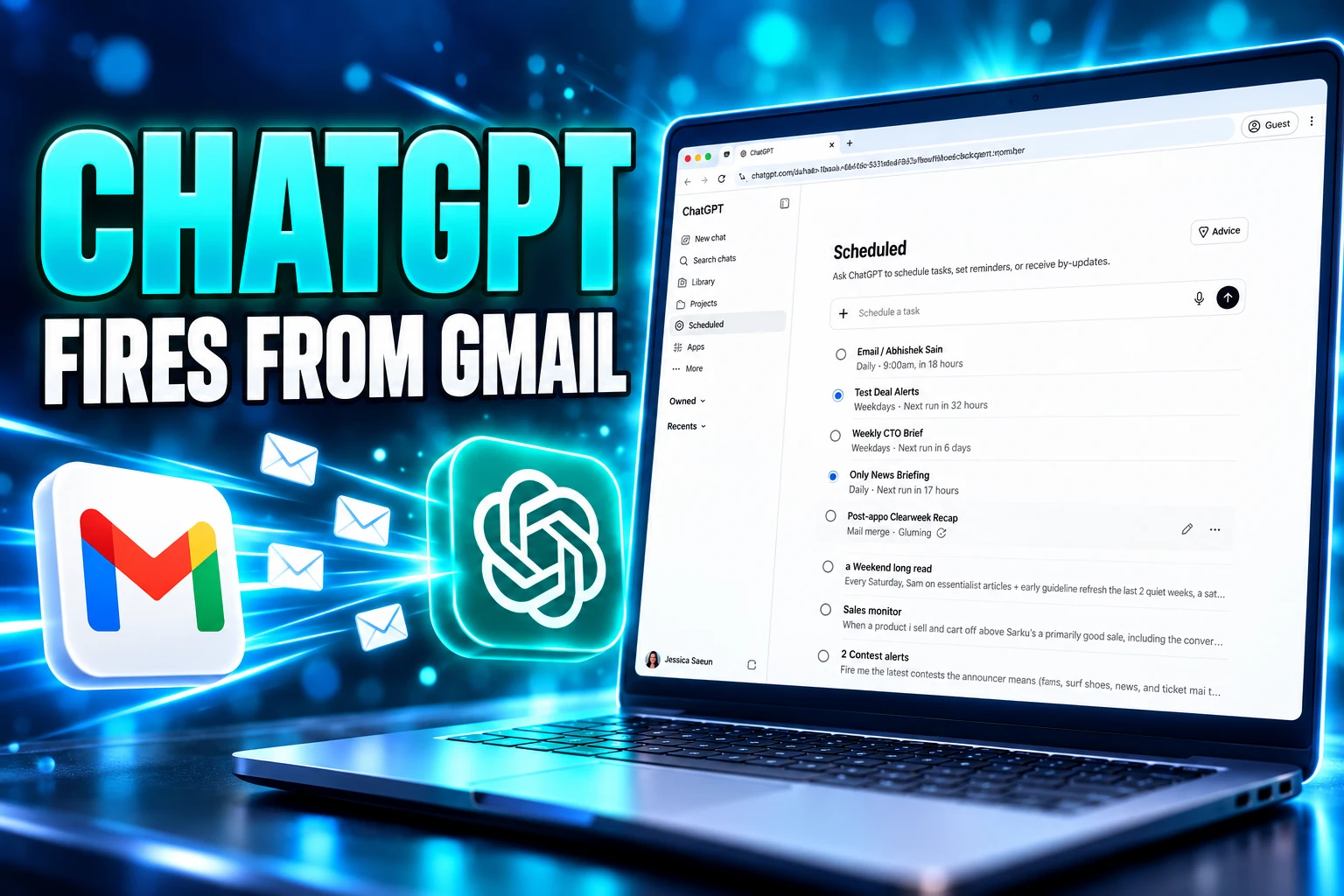
A scheduled task is a saved instruction ChatGPT runs later, once or on a loop, then pings you in a push alert or an email. You can ask from a normal chat, or open Scheduled and build the job there. OpenAI’s help pages say availability still depends on the account, the app and the app version.
The June 17, 2026 update put that list in the sidebar so you can see the next run, then pause, resume, edit or delete without digging through old threads. Settings, then Notifications, then Manage tasks opens the same list. From a chat, the more-options menu leads to See scheduled tasks.
Monitoring jobs check for a change and only write when something is worth reporting. They can use earlier runs and stop when an end condition you set is met. Connect Gmail, Slack or GitHub under Settings, then Apps, and a clock-based job can read those apps when your account allows it.
Connecting a financial account can also spawn a Weekly finances update you did not type. OpenAI says existing Finances users may get a one-time notice when that job is added. Pause or delete it from Scheduled if you do not want the mail.
OpenAI Academy still sells the simple version of this: a weekday briefing, a 1:1 prep note, a short industry roundup. One starter prompt is to summarize the top 3 headlines every weekday at 9am, with source links. That is a useful job. It is also one slot.
OpenAI Had to Ship Tasks Twice
On January 14, 2025, OpenAI called the first release a beta version of tasks for Plus, Pro and Teams, and said it would reach anyone with a ChatGPT account eventually. You had to pick a special scheduled-tasks model in the picker. The job list lived under the profile menu. The company framed it as a way to ask ChatGPT to do something at a future time, from a one-off reminder to a repeating briefing.
Seventeen months later the same idea came back as a product surface, not a model toggle. The June 17, 2026 release notes say tasks got a dedicated Scheduled page, faster runs, windows such as morning, afternoon or evening, and monitoring that searches the web or connected apps and notifies only when there is something to report. Pulse, the overnight briefing, was sunset as those updates moved into tasks. Pro users kept Pulse for 14 days after June 17. Anyone who still wanted a morning brief had to spend a task slot on it, which is how Pulse folded into scheduled tasks.
THE TASK TIMELINE
- January 14, 2025: OpenAI rolls out tasks in beta to Plus, Pro and Teams, with a special model picker and a profile-menu job list.
- June 17, 2026: A Scheduled page lands in the sidebar, monitoring jobs can watch the web and apps, and Pulse begins a 14-day wind-down.
- July 9, 2026: ChatGPT Work ships as an agent for longer jobs, and scheduled tasks are how Work keeps a project moving on a timer, a trigger or a watch.
- August 25, 2026: Work tasks can fire from Gmail, Slack and GitHub, Free users get three active jobs, and a task can be shared as a copy someone else schedules.
The first beta asked you to remember a model name. The second launch asked you to manage a queue. That is the shift the how-to posts underplay.
How Many Scheduled Tasks Each Plan Gets?
OpenAI’s help center states that active task limits depend on the plan. Hit the cap and you pause or delete a live job, or wait for one to finish, before you can add another. Eligible ChatGPT models can run tasks; which model you get still depends on the job, the plan and workspace settings.
ACTIVE TASKS BY CHATGPT PLAN
| Plan | Active jobs | Clock schedule | Event triggers |
|---|---|---|---|
| Free | 3 | Once, or repeating no more than once a day, in morning, afternoon or night windows | No |
| Go | 3 | Paid hourly timing and exact delivery times | No |
| Plus | 5 | Up to once an hour, exact times allowed | Yes, in Work |
| Business and Edu | 10 | Up to once an hour, exact times allowed | Yes, in Work |
| Pro and Enterprise | 15 | Up to once an hour, exact times allowed | Yes, in Work |
A Plus account at five live jobs fills fast: a morning brief, a package watch, a weekly digest, an inbox monitor and a meeting prep note. That is the whole allotment. Pro and Enterprise go to 15. Event-triggered jobs have a separate throttle, up to 30 times an hour and 720 times a day across all of those jobs, and several events may be grouped. Clock jobs on paid plans still top out at once an hour. Inactive jobs may pause on their own.
After the August 25 post, Plus users asked, in public, for the cap to move toward 10. That request is the pricing logic working. Free’s three daily-window jobs are a taste. Five on Plus is a squeeze. Fifteen is the paid escape hatch.
Gmail, Slack, and GitHub Can Fire a Task
The June page still ran on a timer. The August notes say scheduled tasks can respond to app updates instead of waiting for the clock, so you are not polling Slack or the inbox yourself.
Scheduled tasks in ChatGPT Work can use webhooks to respond when something changes in a supported app, helping you keep work moving without repeatedly checking for updates. You can also share a task so someone else can review and customize it, connect their own apps, and schedule an independent copy.
OpenAI, ChatGPT release notes, August 25, 2026
Those event jobs run inside the ChatGPT Work agent for longer jobs, on web, iOS and Android. Plus, Pro, Business, Enterprise, Edu and eligible Healthcare workspaces can create them. Free, Go and FedRAMP workspaces cannot. You connect the app, open Work, describe the event and the action, then review Trigger, Condition and Prompt. Actions that need approval pause until you look.
THE THREE WEBHOOK TRIGGERS
- Gmail: A new message can start the job, and you can filter by sender or subject.
- Slack: New channel messages can start it, and you must add @ChatGPT to each watched channel.
- GitHub: Supported pull request activity in an authorized github.com repository can start it.
Three sources is a small pipe next to automation tools that already wire hundreds of apps and sit unattended for months. Gmail, Slack and GitHub are the inbox-and-code triangle, not calendar, not billing, not a generic webhook URL. Treat a first event job as find, summarize and draft. Keep a person in front of send, merge or pay.
The company posted the change, with sample jobs, on August 25.
A few updates to scheduled tasks in ChatGPT Work on web and mobile: Plus and Pro users can now set tasks to respond when something changes in Slack, Gmail, and Github, rather than just run on a set schedule.
We’re also rolling out scheduled tasks in ChatGPT to Free users, who… pic.twitter.com/8btB1ZtDqa
— ChatGPT (@ChatGPT) August 25, 2026
The samples were a weekly ship recap across Slack, GitHub, email and Linear, a Friday watch list across streaming apps, an inbox scan for ways to save money, and a weekday sweep for unanswered questions, approval requests and promises someone is waiting on. Those are briefings. They are not a full Zapier replacement, and they still spend a slot.
A Shared Task Leaves Your Inbox Behind
Any eligible Free, Go, Plus or Pro user can share a scheduled task. Recipients review the instructions, change the schedule if the job allows it, connect their own apps and create a separate copy. A shared webhook job still needs Work plus the recipient’s own app connection. Completed jobs cannot be newly shared. Jobs that run only on your computer cannot be scheduled from a shared link.
The link holds a snapshot of the title, instructions, schedule and original time zone, and it may keep the mode or model when an eligible person copies it. It does not include your name, chat history, past results, memories, custom instructions, attached files, connected app data or credentials. They run it under their account.
The title can show up in a link preview, and anyone who opens the link can read the full instructions. OpenAI’s help pages warn against putting health information, financial details, passwords, account numbers or other sensitive personal data in the title or the prompt. Changes to the original job do not update the old link; you copy the link again from the share dialog to refresh it. Delete the share to stop new copies. That does not delete the original, or copies people already made.
On a personal account, anyone with the link can view the job. Inside Business, Enterprise, Edu or Healthcare, the link stays inside that workspace. A Business or Enterprise member can view a personal-account link but cannot schedule it into the workspace. Delete the chat that created a job and the job pauses; the share link still works until you delete that too.
So a shared task is a recipe a coworker can clone, not a handoff of your logged-in Gmail. That is closer to a chore chart than to a delegated inbox.
Keep Voice and Custom GPTs Out of Tasks
The help center is blunt about the surfaces that will not ride along.
STILL BLOCKED INSIDE A TASK
- Voice chats: Scheduled tasks do not support Voice, so a talking session cannot be the job.
- GPTs: Custom GPTs are out, which cuts off the specialized bots people already built for repeating work.
- Project files: A job created inside a project cannot read files uploaded or stored in that project.
- Desktop triggers: The desktop app can show existing event jobs but cannot create or edit their trigger conditions; use web or a supported mobile app for that.
If Scheduled is missing on desktop, OpenAI says to use ChatGPT on the web. Codex is a different queue; Codex automations run in Codex, not in this sidebar. Push alerts on a phone require creating the job in a supported mobile app and granting notification permission. Browser alerts need the same permission in the browser. You can pick Push, Email or both under Settings, then Notifications.
Clock jobs are also slow by design. Paid plans allow a repeat as often as once an hour, which is fine for a briefing and useless as a real-time alarm. Free jobs cannot use exact times at all. And a job you ignore can pause itself, so the “set it and forget it” pitch still has a babysitter.
Admins Keep Event-Triggered Tasks Disabled
In Enterprise, Edu and ChatGPT for Healthcare, members can share customizable jobs inside the workspace only if admins allow Share chats and scheduled tasks in the workspace. Webhook jobs need a second switch, Allow event-triggered scheduled tasks, under Permissions and roles, then Work. That permission starts off.
Healthcare is stricter. Event-triggered jobs are off by default there, they are not covered under a Business Associate Agreement, and OpenAI says not to use them to transmit, store or process protected health information. ChatGPT Health and ChatGPT Finances can feed ordinary scheduled jobs, such as a portfolio note after the market closes, but they are not sources for event triggers.
Scheduled tasks themselves show up in the Compliance API. Shared task links and the snapshots inside them do not, as of the current help pages. Personal data exports include metadata for shared conversation links, not for scheduled tasks or those snapshots. Workspace admins still control which apps members may connect, which actions stay behind approval, and whether a job that sends a message or changes outside data must wait.
That is the quiet stakeholder in a feature written up as a reminder tool. Once a job can read Gmail or a GitHub repo on a trigger, IT owns the switch, and the default is off.
A Plus account still holds five live jobs. Event triggers still speak only Gmail, Slack and GitHub. The Scheduled page is where those slots get spent.

Instagram Plus Tests a Read-Only Mode That Cuts Stories

Altman Asks the Public to Accept Some AI Harm

Google Freezes OSS VRP Product Reports After AI Flood

AI Agents Make Payment Rails the Scarce Prize

Turkey’s Crypto Boom Now Runs Through Three Banks

Fable 5 Came Back Under a Commerce On-Off Switch

Google’s SpaceX GPU Lease Has a Sept. 30 Deadline

Plasma One’s XPL Locks Face a 1.81 Billion Cliff

DGO’s Rs 549 World Cup Pass Cost Fans Sleep and Data

Moonshot AI’s $30 Billion Ask Became a $35 Billion Close
-
 AI3 months ago
Fable 5 Came Back Under a Commerce On-Off Switch
-
 AI4 months ago
Google’s SpaceX GPU Lease Has a Sept. 30 Deadline
-
 CRYPTO4 months ago
Plasma One’s XPL Locks Face a 1.81 Billion Cliff
-
 APPS4 months ago
DGO’s Rs 549 World Cup Pass Cost Fans Sleep and Data
-
 AI4 months ago
Moonshot AI’s $30 Billion Ask Became a $35 Billion Close
-

 NEWS4 months ago
ColorOS 17 Device List Spans Oppo, OnePlus and Realme
-

 GAMING4 months ago
Xbox Cuts 3,200 Jobs After Five Years of Thin Returns
-

 GAMING4 months ago
The RTX 4050 Under Rs 70,000 Hides a Wattage Gap